
Track Account Activity with Activity Log
Use the activity log in the Developer Console to view, filter, and download a record of write actions performed by users on your developer account.
Overview
The activity log gives administrator users a centralized view of write actions taken on a developer account. You can see who performed an action, what changed, and when it happened. This record helps your team maintain accountability, troubleshoot issues, and meet compliance requirements. Currently, the activity log tracks account settings actions.
Access the activity log
All users with the "administrator" role can access the activity log. Non-administrator users can see the Activity Log tab under Settings but receive an "Access Denied" message when they try to open it.
To open the activity log
- Sign in to the Developer Console.
- Choose My Settings > My Account, then select the Activity Log tab.
The activity log displays all recorded activities in reverse chronological order with pagination.
Understand the activity log view
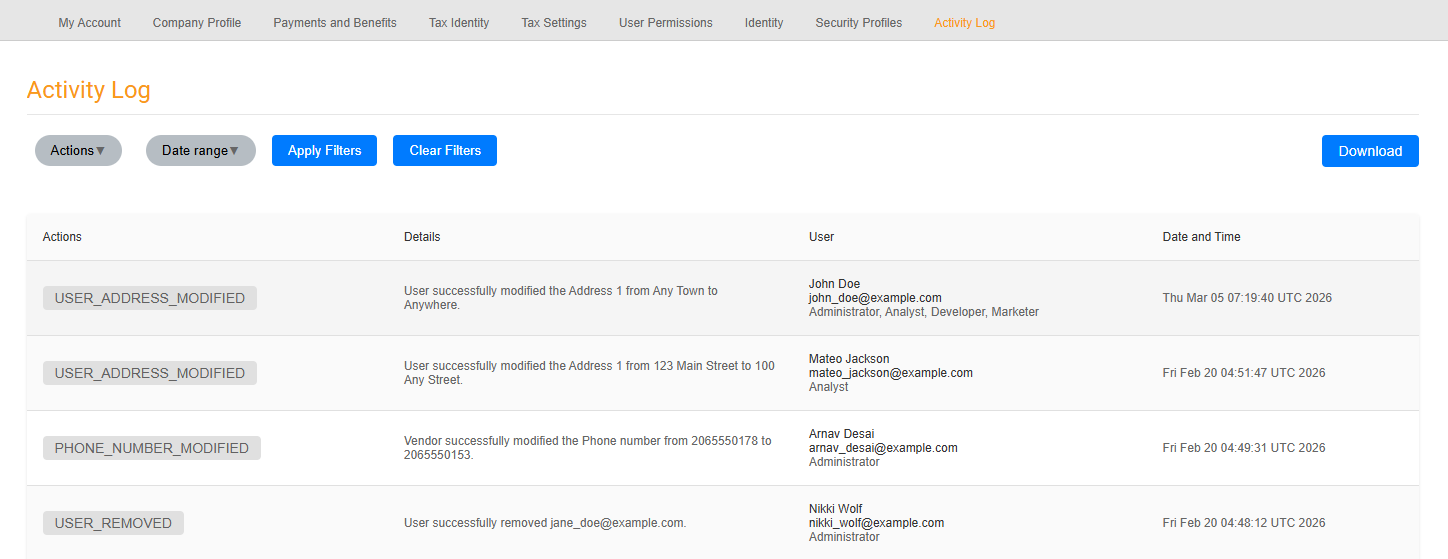
Each entry in the activity log table includes the following columns.
| Column | Description |
|---|---|
| Actions | A tag for the type of action performed. |
| Details | Details about what changed. |
| User | Name, email address, and role of the user who performed the action. |
| Date and Time | Date and time of the action where the timezone is UTC. For example, Thu Apr 16 18:27:58 UTC 2026. |
The Details column shows the specific changes that a user made. For examples, see Tracked activities reference.
Filter your view
You can use filters to narrow the activity log to specific entries. You can also combine multiple filters to better target the specific logs you want to view. The following table describes the available filters.
| Filter name | Description |
|---|---|
| Date range | A date range for the activities you want to view. Select a start and end date from the calendar. The start date can be up to three months before the current date. |
| Action | Lists all unique action tags that have been performed in the account. All action tags are selected by default. You can select multiple options. |
After you configure your filters, choose Apply Filters to update the view. To return all filters to their default state, choose Clear Filters.
Download activity log data
You can download activity log entries for offline review, compliance audits, or record-keeping.
To download activity log data
- Sign in to the Developer Console.
- Choose My Settings > My Account, then select the Activity Log tab.
- Select a date range for the download using the date filter.
- Choose any filters you want applied to the downloaded logs.
- Select Download.
A CSV file downloads immediately and includes all entries that match your current filter selections. If no filters are applied, the download includes all available data for the selected date range.
Tracked activities reference
The following table lists all activities that the activity log records.
| Activity | Example log entry |
|---|---|
ACCOUNT_OWNERSHIP_TRANSFERRED |
User successfully transferred ownership to newowner@example.com. |
EXISTING_USER_ROLE_MODIFIED |
User successfully modified the roles of user@example.com from Role 1, Role 2, Role 3 to Role 1, Role 2. |
FULL_LEGAL_NAME_MODIFIED |
Vendor successfully modified the Full legal name from Old name to New name. |
NEW_USER_ADDED |
User successfully added newuser@example.com with roles: Role name. |
PHONE_NUMBER_MODIFIED |
Vendor successfully modified the Phone number from Old number to New number. |
USER_ADDRESS_MODIFIED |
User successfully modified the Address 1 from Old address to New address. |
USER_INVITATION_RESENT |
User successfully resent invitation to user@example.com. |
USER_REMOVED |
User successfully removed user@example.com. |
VENDOR_ADDRESS_MODIFIED |
Vendor successfully modified the Address 1 from Old address to New address. |
VENDOR_PROFILE_MODIFIED |
Vendor successfully modified the City from Old city to New city, State from Old state to New state, Zip code/Postal code from Old zip code to New zip code. |
Activity log FAQ
The following are frequently asked questions (FAQ) about the activity log.
- Q: How far back can I view activity log data?
- The activity log displays up to three months of data in the console view. To access older records, use the download feature.
- Q: Can I view activity log entries from before the feature launched?
- No. Activity log records activities starting from the date the feature launched. Historical data from before that date isn't available.
- Q: Why don't I see page views in the activity log?
- The activity log tracks write operations only, such as creating, updating, or deleting resources. Viewing a page is a read-only action and isn't recorded.
- Q: I'm an administrator but I can't access the Activity Log tab. What should I do?
- Verify that your account has the administrator role assigned. If you have the correct role and still can't access the tab, contact Developer Support.
Last updated: Jul 15, 2026
