
Live Device Interaction - Virtual Devices
With the Live Device Interaction virtual device farm, you can test your app functionality on cloud-hosted Fire TV devices, including the following scenarios:
- Sideload and test APKs to observe app behavior during installation and uninstallation
- Install, launch, and exit
- Navigate to in-app sign-in and sign-up screens
- Browse content from Appstore
- Make in-app purchases on live downloaded apps
- Navigate and control the app using the virtual remote
You can also take screenshots, record videos, download logs, and send Android Debug Bridge (ADB) commands.
Access devices
Appstore Quality Central's Live Device Interaction lets you remotely access a virtual device farm to help you assess real-world scenarios.
To access the virtual device farm in Appstore Quality Central
- Go to the Developer Console dashboard and sign in.
- From the navigation bar, select Tools & Services > Appstore Quality Central.
- On the Live Device Interaction — Virtual Devices card, select Get Started.
If you also have access to the Live Device Interaction physical device farm, when you directly select the Live Device Interaction tab at the top of the screen, it launches the physical device experience. To access virtual devices, go to the Live Device Interaction — Virtual Devices card and choose Get Started.
Developer agreement
After you click Get Started, Appstore Quality Central presents the Developer Agreement and Device Handling Guidelines. Read the on-screen agreement and when ready, click Agree and Continue. After you provide your consent, you can access unreleased versions of hardware and/or software (the "Prototypes"). The Prototypes are confidential, made available to you on a "beta" basis, and are Restricted Program Materials under our Program Materials License Agreement. You, your company, and your personnel must also abide by the Additional Restrictions listed in the Developer Agreement and Device Handling Guidelines.
Connect remotely to devices
When you access virtual devices, you see a Devices tab and a Details tab.
-
On the Devices tab, you can see the available devices that you can interact with remotely.
-
On the Details tab, you can see the details of the available devices, such as model and OS version. You can also see the number of usable devices and the number of devices that are busy (in-use).
To connect to a particular device
- On the Devices tab, choose the image of the device to start a remote session. Alternatively, on the Details tab, select Use on the device you want to interact with.
- After you connect to the device, sign in with your Amazon account.

When connected to a device, you can choose to perform any of the following actions:
- On the Remote tab, access a virtual remote to navigate the Fire TV.
- On the Dashboard tab, in the App Upload section, upload an app binary from your local device.
- On the Dashboard tab, in the Shell section, enter ADB commands.
- On the Dashboard tab, in the Remote Debug section, start a remote debug session. For instructions, see Remote Debug.
- On the Screen tab, take screenshots and videos. Make sure to download any screenshots and videos before closing the session.
- On the Logs tab, generate logs for debugging or validations.
- Navigate to Amazon Appstore and download any live app.
Navigation
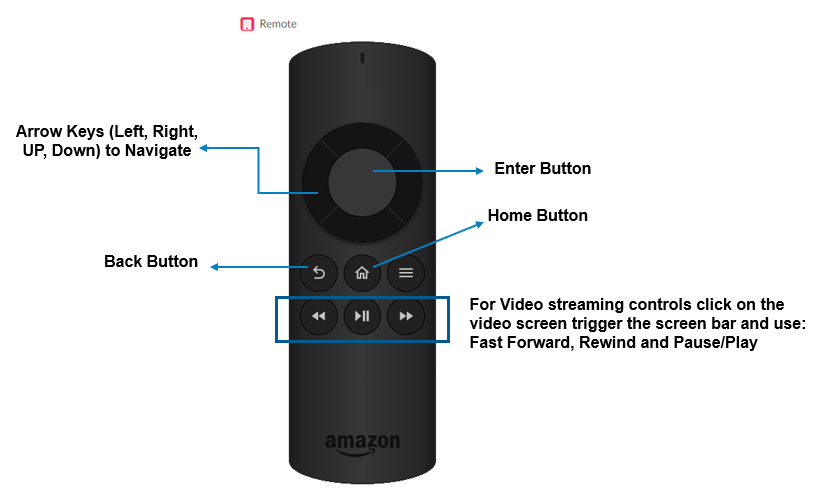
When you access a remote device, you can use a virtual remote, your keyboard, or a keyboard touchpad to navigate. For a Fire TV, use the virtual remote for the best experience.
The following image displays the keyboard-to-Fire TV remote mapping.
Text description
- D-pad navigation: Use the LEFT, RIGHT, UP, and DOWN arrow keys on the keyboard.
- Home button: Use the Home button icon on the virtual remote in the Remote tab.
- Center D-pad button: Use the ENTER key on the keyboard.
- Back button: Use the Back button icon on the virtual remote in the Remote tab.
- For video streaming controls, click the video screen to activate the seek bar. Then, use the RIGHT arrow key to fast-forward, LEFT to rewind, and SPACEBAR to play or pause.
Guidelines
Use the following guidelines for the best experience with Live Device Interaction.
Note about Safari browser
If you are using Safari, follow these steps to make sure you can access Live Device Interaction.
- Click Safari > Settings… > Privacy.
- Under Website tracking, deselect Prevent cross-site tracking.
- Click Advanced Settings.
- Under Privacy, deselect Block all cookies.
Do
- Have stable internet with good speed and bandwidth (greater than 100 Mbps).
- Sign in to your Amazon account before using the Fire TV.
- Save any device PIN that was enabled during device registration.
- Save your logs, recordings, and other generated data before closing the remote session or window.
Don't
- Leave the device idle for more than 15 minutes. Leaving the device idle can cause device disconnections.
- Change the screen quality, refresh rates, or perform multiple concurrent clicks. These actions can cause lag.
Related topics
- Remote Debug
- Live Device Interaction FAQ
- Live Device Interaction - Physical Devices
- Understanding Appstore Quality Central
Last updated: Jun 30, 2026
