
Your App Design Guide for Ring Customer Experiences
This guide provides design guidelines and user experience best practices for developers building apps on the Ring Appstore. It covers onboarding, device integration, subscriptions, authentication, error handling, and customer engagement. Whether you're building your first Ring Appstore app or refining an existing one, following these guidelines helps you reduce customer confusion, build confidence, and deliver a polished experience from first install to long-term engagement.
On this page
- Account setup and user creation
- First-visit tutorial
- Refer to Ring app for device configuration settings
- Displaying connected Ring devices
- Motion detection
- Subscription and free trial status
- Pricing, purchases, and cancellations
- Authentication and token management
- Accessibility
- Data privacy and deletion
- Proactive customer engagement
- Ring Appstore listing page
- Design checklist
Terminology
Throughout this guide, the following terms distinguish between the two apps involved in a Ring Appstore integration.
| Term | Definition |
|---|---|
| Ring app | The Ring mobile application developed and maintained by Ring. Customers use the Ring app to set up devices, manage device settings, browse the Ring Appstore, and control account-level preferences. Your app cannot modify these settings directly. |
| Partner app | The application you build and publish on the Ring Appstore. Your partner app receives device data, events, and video streams through the Ring API. It runs independently from the Ring app but depends on it for device configuration and account linking. |
| Ring Appstore | The marketplace within the Ring app where customers discover, install, and manage partner apps. |
| Ring My Apps | The section within the Ring app where customers view and manage their installed partner apps, including subscription management and cancellation. |
Account setup and user creation
New user registration
When your partner app requires account creation, design the registration flow for new users — not returning users. Ring customers who install your app from the Ring Appstore are encountering your service for the first time. They often attempt to sign in with their existing Ring credentials, which doesn't work.
To prevent confusion:
- Label the primary action Create Account or Sign Up, not Log In or Sign In.
- Include a brief explanation such as: "Create a new account to get started. This is separate from your Ring account."
- Place the sign-in option for returning users in a secondary position below the registration form.
Email address requirements
If your partner app requires the email address to match the customer's Ring account email, state this requirement before the email input field — not after a failed validation. For example: "Use the same email address associated with your Ring account."
Platform availability
Clearly communicate to customers where and how they can access your partner app — whether it requires downloading an iOS or Android app, or is accessible through a web browser. A web-based experience reduces friction, as customers may be reluctant to download additional mobile apps. Ideally, your partner app should support all platforms (iOS, Android, and web) to reach the broadest possible audience.
Account linking
After the customer installs your app from the Ring Appstore, selects devices, and confirms permissions, Ring redirects them to your Account Link URL in a browser. At this point, the token exchange has already happened in the background — the customer now needs to sign in or create an account on your service to complete the linking.
Design your account linking page to handle common failure modes:
-
Email verification blocks completion: Customers who are required to enter an email verification code during the linking flow may never receive the code (due to email delays or spam filtering) and abandon the process. Avoid adding verification steps during linking. If email verification is needed, handle it asynchronously after linking is complete.
-
Unconfirmed accounts create dead ends: Customers who previously created an account but never completed email verification will see a “User is not confirmed” error when they try to sign in, with no way to proceed. Auto-confirm these accounts transparently when the customer attempts to sign in — do not show a dead-end error.
-
Forgotten passwords force customers off the page: Customers who created an account previously but forgot their password will abandon the flow if they are redirected to a separate password reset page. Include the full forgot-password flow (enter email → receive code → set new password → auto sign-in) directly on the account linking page.
Reducing account linking drop-off
The following patterns reduce friction during account linking, listed from lowest friction to highest. Choose the approach that fits your service architecture.
-
Passwordless account linking (recommended). Eliminate the signup form entirely. Since the token exchange provides access to the customer's Ring email, you can create their account automatically — no form fields, no password, no customer action required.
How it works:
- When the customer opens your account linking page, use the nonce and access token from the token exchange to fetch their Ring email via the Users API.
- Create their account server-side using the fetched email with a random internal password the customer never sees.
- Complete the Ring account linking automatically.
- Show a confirmation page with their email address and a link to your dashboard.
The customer sees only a brief loading state followed by "Account Linked!" — zero input required.
For dashboard login, use email-based one-time codes instead of passwords. The customer enters their email, receives a 6-digit code, and signs in. This eliminates forgotten passwords and account recovery friction entirely.
Handling edge cases:
- If the Ring email fetch fails (due to timing or token mismatch), fall back to showing a single email field with a "Link Account" button — still no password.
- If the customer already has an account with that email, sign them in automatically and complete linking.
- If the customer revisits the linking page after already linking, show "Already Linked" with a link to your dashboard.
Note: Passwordless linking achieves near-100% completion rates for customers who reach the account linking page, compared to 60-80% with traditional signup forms. - Pre-populate the email field from Ring's user API. If your service requires an explicit signup form, reduce friction by pre-filling the email. By the time the customer opens your signup page, the token exchange has already happened — you have their Ring access token on your backend. Use it to fetch their email before rendering the page:
- Match the nonce URL parameter to the correct unclaimed token through HMAC.
- Call Users API with the matched access token.
- Pre-fill the signup email field with the result (keep it editable).
- Fail silently if the lookup fails — the customer can still enter their email manually.
This reduces friction on mobile, where typing an email in Ring's in-app browser is a common drop-off point.
-
Skip email verification when the signup email matches the Ring email. If the customer signs up with the same email that Ring returns, you can trust it — Ring has already verified it. Don't verify it again.
- Defer verification when the email doesn't match. If the customer uses a different email, send a verification email in the background but don't block account linking. Prompt for verification later when they log into your dashboard.
The key principle: never block account linking for email verification. Every extra step in the linking flow is a drop-off point.
Account linking confirmation
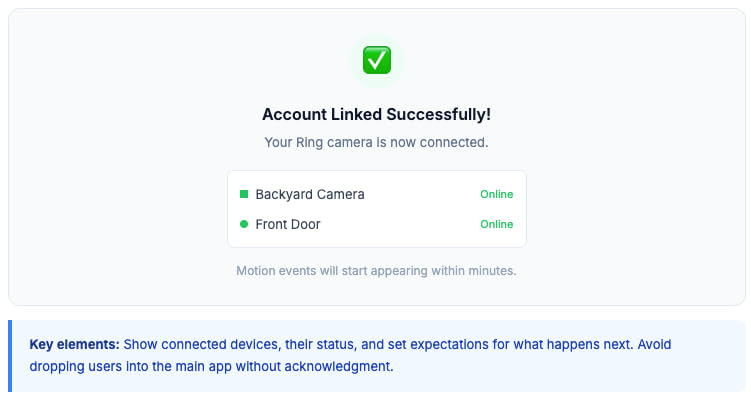
When a customer successfully links their Ring account, display a clear confirmation screen that:
-
Lists the connected devices with their online/offline status.
-
Sets expectations for what happens next — which features are now active and when they’ll see first results.
-
Provides a direct link to your app’s main experience (e.g., “Go to Dashboard”).
-
Do not drop customers into the main app experience without acknowledging the completed linking step.
Error handling during account setup
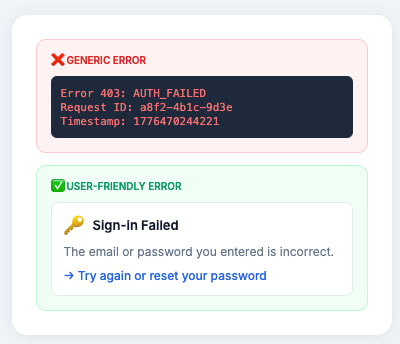
Provide clear, customer-friendly error messages for common account setup failures — such as an email mismatch, an expired linking session, or a failed account creation attempt. Don't use generic error codes or technical messages. Each error state should explain what went wrong in plain language and offer a clear next step to resolve it.
First-visit tutorial
Provide a guided tutorial the first time a customer opens your partner app after account linking.
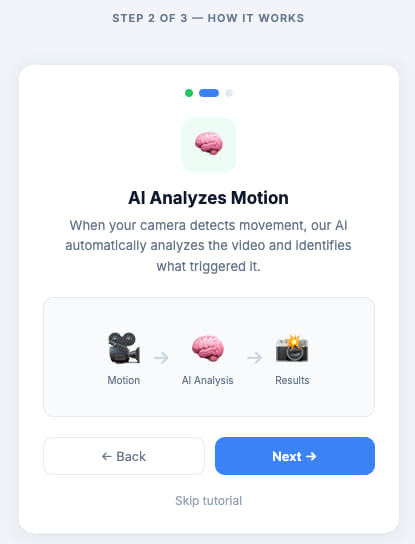
- Walk through the core features and explain how your app uses their Ring devices.
- Highlight any setup steps the customer needs to complete in the Ring app (see Refer to Ring app for device configuration settings).
- Keep the tutorial skippable — don't force customers through it if they want to explore on their own. Provide an easy way to revisit it later, for example through a Help or Getting Started section in the app menu.
- If your tutorial spans multiple steps, show customers where they are in the flow with a clear progress indicator so they know how much is left to complete.
- When a customer completes the tutorial and their setup is ready, acknowledge it with a positive confirmation message. Let them know their app is set up and ready to use — this builds confidence before they dive into the main experience.
- Use the Ring Appstore video listing to showcase your app's setup flow. A short walkthrough video on your Ring Appstore listing page sets expectations before customers install your app.
Refer to Ring app for device configuration settings
Some device settings can only be changed in the Ring app. Your partner app cannot modify these settings through the Ring API — they are read-only. Depending on how customers have their Ring devices configured, your partner app might not receive motion detections or have access to recordings. Two common causes are:
- Smart Alerts settings — If a customer has Smart Alerts configured to filter certain motion types, your app may not receive the motion events it expects. There is currently no API support to check whether Smart Alerts is enabled, so your app cannot detect this programmatically.
- Camera Motion Zones settings — If motion zones are too narrow or misconfigured, your app may miss activity outside those zones. The Device Configuration API does provide motion zone data, but customers can only change these settings in the Ring app.
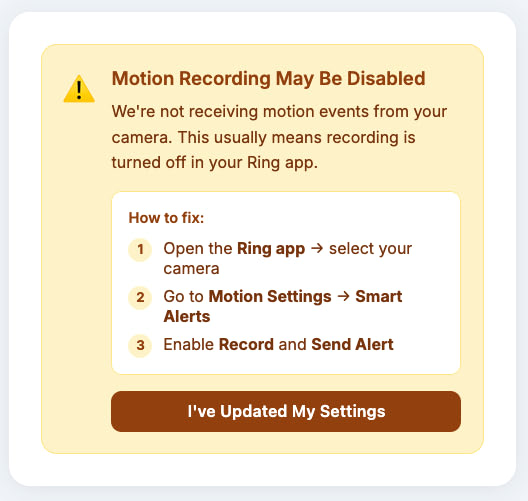
Because your app can't always detect or resolve these configuration issues through the API, the best approach is to guide customers within your partner app using in-app messaging that directs them to the Ring app to review and adjust their device settings.
When to show a configuration guidance message
Display a configuration guidance message when:
- Your app isn't receiving expected motion events — this is often caused by Smart Alerts filtering or motion zone misconfiguration.
- A device setting that your app depends on is disabled (for example, motion recording is turned off).
- A feature requires a Ring subscription plan that the customer doesn't have.
Configuration guidance message pattern
Use a consistent pattern for all configuration guidance messages:
- Explain what's wrong — Describe the issue in terms the customer understands. Don't reference API fields or internal states.
- Explain why it matters — Tell the customer how this affects their experience in your partner app.
- Direct them to the Ring app — Provide specific navigation instructions within the Ring app.
Example configuration guidance messages:
Motion recording is turned off Your Ring device isn't recording motion events, so [your app name] can't detect activity. To turn on motion recording, open the Ring app, go to your device settings, and enable Motion Recording under Motion Settings.
No motion zones configured [Your app name] uses motion zones to focus on specific areas. To set up motion zones, open the Ring app, go to your device settings, and configure Motion Zones under Motion Settings.
Device compatibility warnings
Not all Ring camera models may be compatible with or provide the best experience with your partner app. Surface compatibility warnings early — ideally before or during the installation and onboarding flow — so customers are aware of any limitations before they invest time in setup. If a customer's connected device is incompatible, display a clear, friendly message explaining which device types are supported and what the customer can do next, rather than allowing them to proceed into a broken or degraded experience.
Settings that require the Ring app
The following table lists common settings that customers can only change in the Ring app.
| Setting | Ring app location | Why your partner app might need it |
|---|---|---|
| Motion recording (Smart Alerts) | Device Settings → Motion Settings | Your app needs motion events to trigger alerts or analytics |
| Motion zones | Device Settings → Motion Zones | Your app uses zone data to filter or prioritize motion events |
| Privacy zones | Device Settings → Privacy Settings | Your app must respect privacy zones when processing video |
| Color night vision | Device Settings → Video Settings | Your app's video processing may depend on night vision mode |
| HDR | Device Settings → Video Settings | Your app's image analysis may depend on HDR being enabled |
Displaying connected Ring devices
Use the Device Discovery API to retrieve and display the Ring devices that the authenticated customer has connected to your partner app.
Device names
Display each device using its user-assigned device name (the name attribute from the Device Discovery API response). Don't display raw device IDs, internal identifiers, or API resource types — these are for backend processing only.
- ✅ "Front Door Camera"
- ❌ "ava1.ring.device.GPBGLFYKSWL2…"
Device status
Show the online/offline status of each device so customers can quickly identify which devices are active.
- Use a clear visual indicator (for example, a green dot for online, a gray dot for offline).
- When a device is offline, explain what this means: "This device is currently offline. Live video and motion events are unavailable until it reconnects."
- Don't hide offline devices — show them with a disabled or dimmed state so customers know they exist.
Empty states
When a customer has no devices connected to your partner app, display a helpful empty state:
- Explain why the list is empty: "No Ring devices are connected to [your app name] yet."
- Provide a clear action: "To connect devices, open the Ring app and add [your app name] from the Ring Appstore."
- Don't show a blank screen or a generic "No data" message.
Device removal handling
When you receive a device_removed webhook, update your partner app UI promptly:
- Remove the device from the device list.
- If the customer is viewing that device's detail screen, navigate them back to the device list with a message: "This device is no longer connected to [your app name]."
- Clean up any cached data, active streams, or scheduled operations for the removed device.
Motion detection
Motion events
If your partner app processes motion events, verify that the customer's device is configured to send them. Motion events fire only when motion is detected within the configured detection zones — motion outside the zones doesn't trigger events.
When your app isn't receiving expected motion events, display a configuration guidance message directing the customer to check their device settings in the Ring app (see Refer to Ring app for device configuration settings).
The Device Configuration API returns motion zone polygons as normalized coordinates (0.0 to 1.0 range).
Privacy zones
The Device Configuration API also returns privacy zones. Your partner app must respect these zones when processing video content.
- Don't display, analyze, or store video content from areas marked as privacy zones.
- If your app overlays information on video frames, exclude privacy zone regions.
- Don't expose privacy zone coordinates or boundaries to the customer in your partner app — these are configured in the Ring app and are provided to your backend for compliance purposes only.
Subscription and free trial status
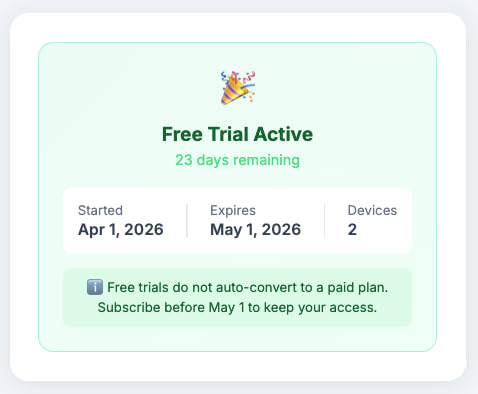
Use the Subscriptions Query API to retrieve and display the customer's current subscription or free trial status within your partner app.
Displaying subscription state
Clearly show the customer's current plan status. The following table lists the states your partner app should handle.
| State | What to display |
|---|---|
| Active paid subscription | Plan name, renewal date, and a link to manage the subscription in Ring My Apps |
| Active free trial | Trial status, expiration date, and a prompt to subscribe before the trial ends |
| Expired free trial | A message that the trial has ended, with a clear path to subscribe |
| No active plan | An explanation of available plans and how to subscribe through the Ring Appstore |
| Inactive (cancelled) | Confirmation that the subscription is cancelled, with the date access ends |
Cascading cancellation
If a customer's Ring subscription is cancelled, all dependent partner subscriptions and trials on the affected devices are automatically deactivated. You receive a subscription_deactivated webhook for each affected subscription.
When this happens:
- Immediately update the subscription status in your partner app UI.
- Display a message explaining that access has ended because the customer's Ring subscription was cancelled.
- Direct the customer to the Ring app to reactivate their Ring subscription if they want to restore access.
Subscription management
Direct customers to Ring My Apps to manage or cancel their subscription. Don't build subscription management into your partner app — purchases and cancellations are handled through the Ring Appstore.
- Explain that cancellations take effect at the end of the current billing period — access continues until then.
- Provide a direct link or clear navigation instructions to Ring My Apps.
Pricing, purchases, and cancellations
- Clearly explain your app's pricing model within the partner app itself.
- Inform customers that purchases are activated through the Ring Appstore — direct them to your Ring Appstore listing page to complete their purchase.
- Explain how cancellations work: customers can cancel their subscription at any time through Ring My Apps, and their access remains active through the end of the current billing period.
Authentication and token management
Tokens and internal identifiers
Never display access tokens, refresh tokens, or internal identifiers to customers. These are backend credentials with no meaningful value to customers, and exposing them creates a security risk.
- Don't show tokens in debug screens, error messages, or logs accessible to customers.
- Don't display device IDs (for example,
ava1.ring.device.XXXYYY). Always use the human-readable device name from the Device Discovery API. - Don't display account IDs, subscription IDs, or plan IDs in the UI.
Session expiration
When a customer's access token expires, refresh it silently in the background without interrupting the customer's experience. Customers should never be unexpectedly logged out or forced to re-authenticate due to routine token expiration. Reserve re-authentication prompts only for situations where a silent refresh is not possible — such as when the refresh token itself has expired — and when you do prompt, provide a clear, friendly explanation of why the customer needs to sign in again rather than showing a generic error.
Data privacy and deletion
Include a clear and accessible data deletion policy within your partner app.
- Explain what customer data your app collects, how long it is retained, and how customers can request deletion.
- Provide an in-app mechanism for customers to delete their account and associated data.
- Confirm deletion to the customer after it completes.
- Your privacy policy must comply with Ring Appstore content policy requirements, including data minimization and user consent standards.
For full privacy requirements, see Ring Appstore Permitted Content Policy.
Proactive customer engagement
Don't wait for customers to return to your partner app on their own. Build proactive outreach into your service.
Communication frequency and controls
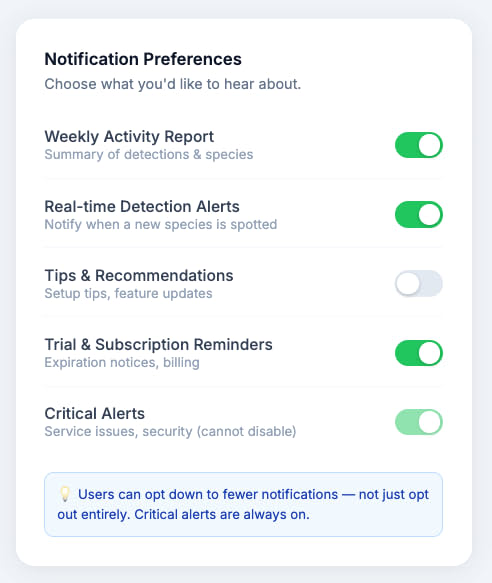
- Send daily or weekly emails or notifications to keep customers informed and engaged — for example, motion summaries, weekly activity reports, or tips for getting more value from your app.
- Use webhook events (such as
motion_detected) to trigger timely, relevant notifications rather than relying solely on scheduled messages. - Frequency caps — Avoid over-communicating. As a general guideline, limit outreach to a maximum of one email or SMS per day for routine notifications. Reserve higher-frequency communication strictly for critical alerts, such as a security event or service disruption.
- Notification controls — Give customers granular control over their notification preferences. Allow them to choose which types of notifications they receive (for example, activity summaries, promotional updates, critical alerts) and how often they receive them. Customers should always be able to opt down — not just opt out entirely.
Opt-out compliance
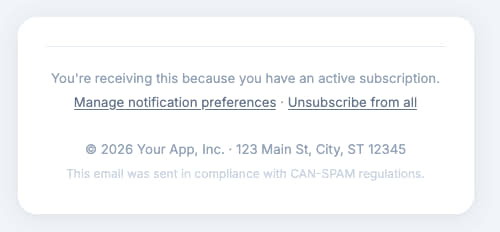
Ensure customers can easily opt out of non-critical communications in compliance with applicable regulations (CAN-SPAM, TCPA, and similar).
Accessibility
To deliver an inclusive experience, follow WCAG 2.2 Level AA — the current international standard for accessibility, covering customers with visual, auditory, motor, and cognitive disabilities.
Key areas to address:
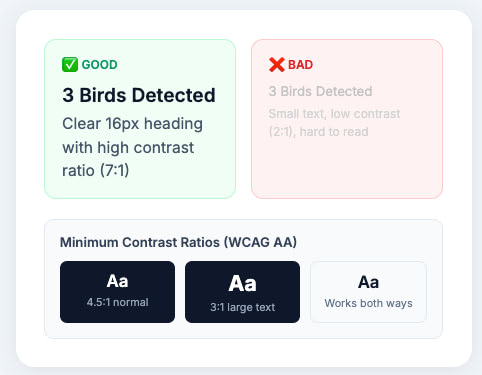
- Color contrast — Ensure all text and interactive elements meet minimum contrast ratios. Choose font sizes and contrast ratios that are easy to read for customers with low vision. Ensure text remains legible across different screen sizes and display settings.
- Screen reader support — Provide meaningful labels for all interactive elements, images, and status indicators so customers relying on screen readers can navigate your app effectively.
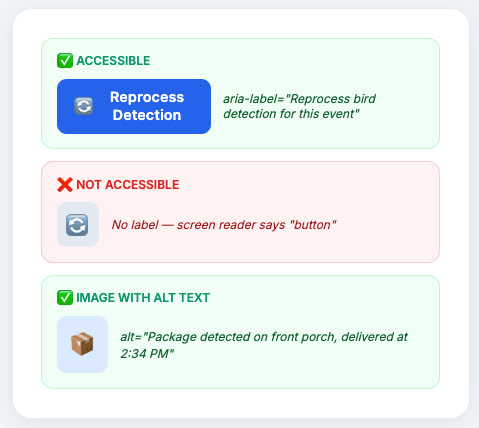
- Keyboard navigation — Ensure all functionality is accessible without a mouse or touch input. Make sure all features and controls are accessible through keyboard navigation or other assistive input methods.
- Motion and animation — Respect the customer's reduced-motion preferences. Don't rely on animation alone to convey information.
- Color usage — Don't rely on color alone to convey information. Always pair color indicators with text labels or icons so customers with color blindness are not excluded.
- Plain language — Use simple, clear language throughout your app. Avoid jargon, complex sentence structures, and ambiguous instructions that may be difficult for customers with cognitive disabilities.
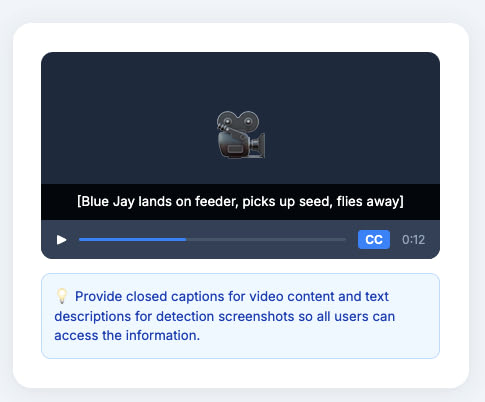
- Video content — Provide captions or transcripts for any instructional video or audio content within your app so customers with hearing impairments can access the same information.
For the full standard and implementation guidance, refer to the official W3C resource: Web Content Accessibility Guidelines (WCAG) 2.2.
Ring Appstore listing page
Your Ring Appstore listing page is often the first impression Ring customers have of your app — treat it as part of your customer experience, not just a formality.
- App name and description — Use a clear, concise app name and write your description in plain, non-technical language. Focus on the customer benefit — what problem does your app solve and how does it make a Ring customer's life easier? Avoid technical jargon in your listing copy.
- Screenshots — Include high-quality screenshots that accurately represent your app's user interface. Show key screens such as the onboarding flow, device dashboard, and notification experience so customers know exactly what to expect before installing.
- Setup walkthrough video — Include a short video demonstrating your app's setup flow end-to-end. This is one of the most effective ways to reduce customer confusion and support requests after installation.
- Privacy and data deletion policy — Include a link to your privacy policy and data deletion policy directly on your listing page. Transparency around data practices builds trust with Ring customers and is a requirement for listing on the Ring Appstore.
- Support and contact information — Provide a clear support contact or link to your help documentation so customers know where to go if they encounter issues.
Design checklist
Before submitting your partner app for certification, verify the following:
- ☑ Registration flow emphasizes Create Account over Sign In
- ☑ Account linking is explained before the redirect to the Ring app
- ☑ Account linking confirmation screen is displayed after successful linking
- ☑ Email pre-fill and deferred verification patterns are used to reduce account linking churn
- ☑ First-visit tutorial is provided and skippable
- ☑ Ring app configuration guidance messages use the consistent pattern (what's wrong → why it matters → where to fix it)
- ☑ Smart Alerts and motion zone limitations are communicated with in-app guidance
- ☑ Devices are displayed by user-assigned name, never by device ID
- ☑ Online/offline status is visible for each device
- ☑ Empty states provide helpful guidance, not blank screens
- ☑ Subscription status is clearly displayed with appropriate actions for each state
- ☑ Free trial non-auto-conversion is communicated clearly
- ☑ Customers are directed to Ring My Apps for subscription management
- ☑ Notification preferences give customers granular control
- ☑ Data deletion mechanism is accessible within the app
- ☑ Accessibility follows WCAG 2.2 Level AA
- ☑ Ring Appstore listing page includes screenshots, description, and privacy policy
- ☑ All user-facing text avoids technical jargon
Related topics
- Ring Partner API Documentation — Complete API reference and integration guide
- Ring Appstore Permitted Content Policy — Content guidelines for Ring Appstore applications
- Ring Appstore Program Requirements — Terms and requirements for the Ring Appstore Program
- Developer FAQ & Certification Best Practices — Common questions and troubleshooting tips
- Certify Your Ring Application — Certification process and submission guide
