

Customer challenges
Customers face the following challenges when commissioning Matter devices:- Pairing mode confusion – Customers often can’t determine how to activate commissioning mode on their devices. Manufacturers implement different activation methods. Some devices require button presses or power cycling, and others provide menu-based approaches through on-device interfaces or manufacturer apps. Further, the commissioning window closes after several minutes, and customers often miss this deadline, resulting in setup failures.
- Multi-step complexity – The commissioning process requires multiple sequential steps that vary depending on the device manufacturer. These steps include scanning a QR code or entering a numeric code, Bluetooth Low Energy (BLE) discovery, secure channel establishment, device attestation, and credential provisioning. Any step can fail without clear customer guidance and consistent UI flows across different smart home administrators.
- Factory reset uncertainty – When commissioning fails or requires a device restart, customers can’t determine how or when to reset their device to factory settings.
- Multi-Admin setup challenge – Multi-Admin support is a key feature of Matter. However, adding an already-configured Matter device to a second Matter administrator creates challenges. Most customers don’t realize they must first open the original administrator app to generate a temporary pairing code. Additionally, each app places this code generation feature in a different location, making customers struggle to find the right place. Customers must then copy that code and enter it in the new app, a multi-step process that feels unfamiliar and frequently leads to customer frustration or failure.
Understand commissioning
The Matter specification defines three commissioning flows, each designed for different product architectures. The flows differ based on device characteristics, pre-configuration requirements, and manufacturer preferences. In all setup paths, the Matter-enabled device advertises that it’s in commissioning (pairing) mode, so that Alexa, acting as the commissioner, can discover and commission the device to the Alexa Matter fabric (a logical network of Matter devices managed by Alexa). The following diagram shows initial and secondary commissioning of a Matter-enabled device to the Alexa Matter fabric. The following table shows the ways a customer can put a device into commissioning mode.
| Commissioning Flow | Description | Examples |
|---|---|---|
Standard CommissioningCustomFlow = 0 | The device automatically enters commissioning mode and begins advertising when the customer powers it on in a factory-new state. This flow requires no customer interaction. | Smart plugs, light bulbs, and any other device ready to pair after the customer plugs or screws in the device. |
User-Intent CommissioningCustomFlow = 1 | The device requires a specific physical action, such as pressing a button or navigating a menu, to enter commissioning mode. Unlike standard commissioning, the device doesn’t start advertising when powered-on. | Door locks, window coverings, thermostats, and other devices where security or battery preservation takes priority. |
Custom CommissioningCustomFlow = 2 | The device requires setup in a manufacturer app or service before commissioning can proceed. Manufacturers use this flow for devices that require account linking or complex configuration beyond the scope of a Matter administrator. | Hubs and complex appliances, such as dishwashers, coffee makers, and refrigerators. |
Initial commissioning
A Matter-enabled device enters commissioning mode by using one of the commissioning flows and begins advertising to the Matter fabric, typically over Bluetooth Low Energy (BLE). Initial commissioning creates the out-of-the-box experience that occurs when a customer sets up a Matter device for the first time. To identify and authenticate their device, the customer scans the QR code printed on the device or product packaging, enters a numeric code, or follows instructions in the manufacturer app or service. The Matter commissioner can then identify the device by the advertisement data, such as the discriminator, and establish a secure channel by using a shared secret derived from the QR code. The commissioner then proceeds with device attestation and credential provisioning to join the device to the fabric.Secondary commissioning
Customers can commission Matter-enabled devices to multiple Matter fabrics. Secondary commissioning occurs when a customer commissions a device already set up on one Matter fabric to a new Matter fabric. Matter supports two methods for secondary commissioning:- Basic Commissioning Method (BCM) – This method uses the original QR code or numeric pairing code from the device or product packaging. If the current Matter administrator and the device support this method, customers follow device-specific manual steps to put the device into commissioning mode. Customers then use the original QR code or numeric pairing code to pair the device with the new administrator. Device manufacturers and commissioners can choose whether to implement this optional method.
-
Enhanced Commissioning Method (ECM) – This method requires a new QR or numeric pairing code. The current administrator sends an
OpenCommissioningWindowcommand to the device to generate a new, random passcode for the pairing window. The current administrator presents the new, temporary 11-digit manual pairing code or dynamically generated QR code in an app or on screen. The customer uses the new code to commission the device onto the new fabric. The Matter specification requires all Matter devices and commissioners to implement this method.
Implementation best practices
A common cause of commissioning failures is that the device isn’t in pairing mode when Alexa attempts discovery. Depending on the commissioning flow the device supports, putting the device into pairing mode might require a power cycle, a button press, or retrieving a pairing code from a manufacturer app. Sometimes, a factory reset is required. The Alexa guided setup begins with initial commissioning and falls back to secondary commissioning based on customer input, providing contextual guidance throughout the process. For devices that require physical interaction, describe these steps in the Distributed Compliance Ledger (DCL) as parameterized instructions. When you provide structured, product-specific instructions in the DCL, Alexa can guide customers through setup without requiring them to search for manufacturer documentation.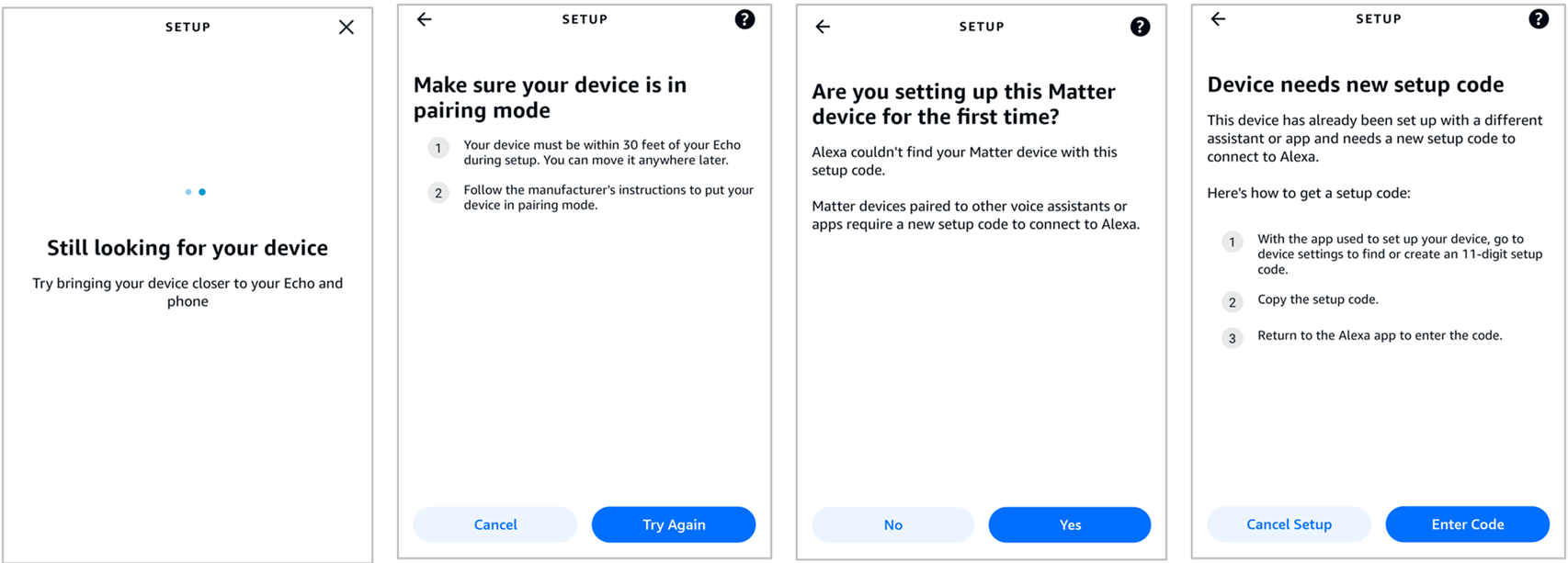
Configure commissioning-related metadata
The DCL contains specific device information, including commissioning data and links to product information. Alexa relies on the DCL to provide manufacturer and product-specific instructions to the customer. Without the information in the DCL, Alexa falls back to generic verbiage. When you populate pairing instructions in the DCL, Alexa can give relevant guidance to the customer.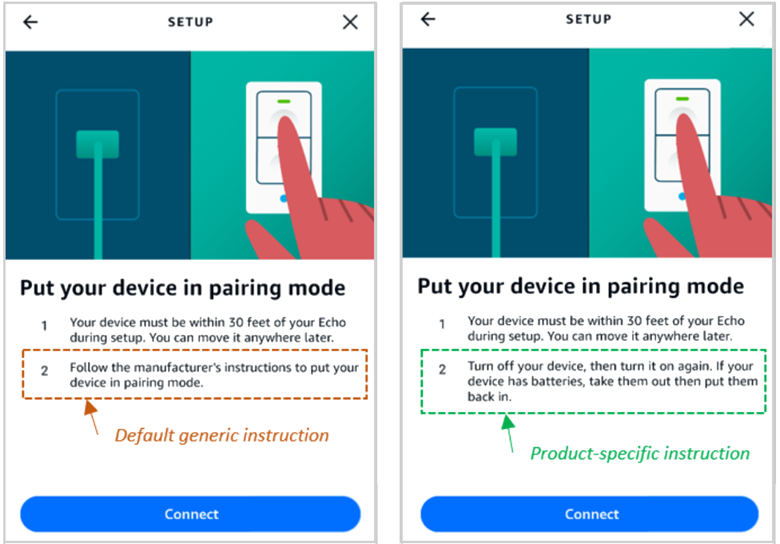 Carefully configure these fields for every Product ID in your portfolio. When you provide clear, product-specific commissioning data in the DCL, you can reduce setup failures, improve customer satisfaction, and lower support costs.
Device model schema
The following table shows the commissioning-related data contained in the DCL device model schema.| Field | Description |
|---|---|
CommissioningCustomFlow | Identifies the device’s commissioning flow: standard (0), user-directed (1), custom (2). |
CommissioningCustomFlowUrl | URL to manufacturer instructions when CommissioningCustomFlow is set to 2. Optional for other flows. |
CommissioningModeInitialStepsHint | Bitmap that indicates the steps a customer must take to put the device into commissioning mode for initial commissioning. |
CommissioningModeInitialStepsInstruction | Custom text or values that provide pairing instructions for initial commissioning. |
CommissioningModeSecondaryStepsHint | Bitmap that indicates the steps a customer must take to put the device into commissioning mode for secondary commissioning. Always include bit 2 (value 4) to indicate the Administrator app should be available as an option |
CommissioningModeSecondaryStepsInstruction | Custom text or values that provide pairing instructions for secondary commissioning. |
FactoryResetStepsHint | Bitmap that indicates the steps a customer must take to reset the device. |
FactoryResetStepsInstruction | Custom text or values that provide additional details for factory reset. |
Pairing hint bitmap
The pairing hint bitmap provides hints to the commissioner about the steps the customer must take to put the device in commissioning mode or factory reset. The pairing hint represents a base-10 numeric value for a bitmap of pairing methods supported by the device. Some pairing hints require additional pairing instructions (PI). The following table shows the bits relevant for commissioning and factory reset.| Pairing hint bit | Decimal value | PI dependency | Name |
|---|---|---|---|
| 0 | 1 | No | Power Cycle |
| 1 | 2 | No | Device Manufacturer URL (CommissioningCustomFlowUrl) |
| 2 | 4 | No | Matter Administrator App |
| 3 | 8 | No | Settings Menu on Node |
| 4 | 16 | Yes | Custom Instruction |
| 5 | 32 | No | Device Manual (UserManualUrl) |
| … | … | … | … |
| 8 | 256 | Yes | Press Reset Button for N Seconds |
| … | … | … | … |
| 12 | 4,096 | Yes | Press Reset Button N Times |
| 13 | 8,192 | No | Press Setup Button |
| 14 | 16,384 | No | Apply Power While Pressing Setup Button |
| 15 | 32,768 | Yes | Press Setup Button for N Seconds |
| 16 | 65,536 | Optional | Press Setup Button Until Light Blinks (color MAY be specified in instruction) |
| … | … | … | … |
| 20 | 1,048,576 | Yes | Power cycle N times, X=minimum seconds ON, Y=time window, Z=blink confirmation |
| 21 | 2,097,152 | Yes | Press button for N seconds, A=CEC key codes, Z=blink confirmation |
| 22 | 4,194,304 | Yes | Power cycle with X=ON duration, Y=OFF duration, Z=visual indication count, M=color name in visual indication, N=initial device state (ON/OFF) |
Enable secondary commissioning for your device
Make sure your device supports both the ECM and BCM methods for secondary commissioning. Provide a way to put the device into secondary commissioning via BCM through physical interaction, allowing customers to conveniently reuse the original fixed passcode typically printed on the device or its packaging. Customers can physically interact with the device to activate secondary commissioning mode. For example, pressing a setup button or power cycling until visual indication appears. Describe these sequences in the DCL to enable Alexa to provide contextual guidance to customers. When you put a device into commissioning mode this way, or when you use theOpenBasicCommissioningWindow command, the device advertises a Commissioning Mode state value of CM=1 which tells Alexa that the device requires the original passcode.
Define a factory reset sequence for your device
A device might appear as “Available” or “Ready to pair,” but still fail with errors, such as “Pairing failed” or “This device is already commissioned.” Common failure reasons include:- Hidden “bound” state due to prior commissioning
- BLE advertising failures
- Misconfigured network settings
- Expired commissioning window
Implement Extended Discovery
For a Matter device already connected to an IP network, such as Wi-Fi or Ethernet, but not in active commissioning mode (CM=0), Extended Discovery allows the device to advertise its presence by using DNS-based Service Discovery (DNS-SD) for longer periods or permanently. DNS-SD enables Alexa to discover the device even when the device isn’t actively seeking to be commissioned.
The Matter specification defines Extended Discovery as “commissionable node discovery over IP,” and it serves two primary scenarios:
- Initial Commissioning – When a device connects to your local Wi-Fi network through a manufacturer app or cloud connection, such as a smart home add-on, but hasn’t yet connected to the Alexa Matter fabric, it’s not in active commissioning mode (CM=0). The device uses Extended Discovery to advertise its presence, enabling Alexa to discover the device and use the Pairing Hint (PH) to guide the customer in putting the device into commissioning mode for its initial Matter setup.
- Secondary Commissioning – Devices already commissioned to a Matter fabric and operating on the network can use Extended Discovery to continuously advertise themselves. Extended Discovery supports the “Discover My Devices” Alexa customer journey. When a customer opens the Alexa app, Alexa can detect the device and guide the customer through the steps to open a secondary commissioning window for the Alexa Matter fabric.
- Connect to the IP network (Wi-Fi or Ethernet)
- Advertise a DNS-SD service of type
_matterc._udpon the local network - Populate the required TXT records in the DNS-SD advertisement
TXT configuration
Matter defines the following TXT record keys for thematterc._udp service advertisement. Alexa reads these keys during Extended Discovery.
| TXT Key | Required? | Description | Example |
|---|---|---|---|
| D | Yes | Discriminator (0–4095) | D=840 |
| VP | No | Vendor ID + Product ID, formatted as VID+PID | VP=4996+514 |
| PH | No | Pairing Hint bitmap | PH=33 |
| PI | No | Pairing Instruction string | PI=Press and hold setup button for five seconds |
| CM | Yes | In commissioning mode or on network in Extended Discovery (1 = standard, 2 = on-network) | CM=1 |
| DT | No | Device Type | DT=257 |
| DN | No | Device Name | DN=My Smart Plug |
Implement extended discovery in firmware
If you use the open source Matter SDKconnectedhomeip, you manage Extended Discovery in DnssdServer and CommissioningWindowManager.
- To configure Extended Discovery in the Matter SDK, include the following definitions in
src/include/platform/CHIPDeviceConfig.h:
- In addition, define the following pairing instructions in the Basic Information cluster or the commissioning data set:
Test all setup journeys across multiple administrators
The Matter specification enables interoperability between devices from different manufacturers, but interoperability in specification doesn’t always translate to a great customer experience in practice. Testing your device with every smart home system your customers might use is essential because each system implements its own commissioning flows, fabric management behaviors, and directive handling. Alexa, in particular, supports multiple setup journeys. Validate your product for each of the following setup experiences:- Initial commissioning
- Secondary commissioning
- Zero-touch commissioning with Matter Simple Setup
- Automatic commissioning using the Alexa.Commissionable interface for Alexa add-on-connected devices
Examples for common device types
The following examples show how to configure the DCL for common device types across each commissioning flow. Use these as a reference when configuring your own device.Standard commissioning
The following examples show common device types, their supported commissioning mode options, and the associated DCL configuration.Smart plug with button
The following example shows a smart plug with a button press to enter commissioning mode.Smart plug
Smart plug
The device supports the following ways to enter commissioning mode:Alexa reads the DCL and displays the following instructions to the customer:
- Initial setup – Power on the plug to put it into standard commissioning mode.
- Secondary setup – Press and hold the button for five seconds.
- Factory reset – Press and hold the button for ten seconds.
- Initial setup –
- Secondary setup – Alexa also gives the option to use the administrator app.
- Factory reset –
Smart bulb with fixed number of power cycles
The following example shows a smart bulb that supports power cycle a specific number of times to enter commissioning mode.Smart bulb with power cycle N times
Smart bulb with power cycle N times
The device supports the following ways to enter commissioning mode:Alexa reads the DCL and displays the following instructions to the customer:
- Initial setup – Power on the bulb to put it into standard commissioning mode.
- Secondary setup – Power cycle the bulb five times within ten seconds, keeping the bulb ON for one second each time. The bulb blinks three times to confirm.
- Factory reset – Power cycle the bulb eight times within 15 seconds, keeping the bulb ON for two seconds each time. The bulb blinks three times to confirm.
- Initial setup –
- Secondary setup – Alexa gives specific power cycling instructions with visual confirmation feedback.
- Factory reset – Alexa gives specific power cycling instructions with visual confirmation feedback.
Smart bulb with power cycle indicator
The following example shows a smart bulb that supports power cycle until a color indicator confirms the device is in commissioning mode.Smart bulb with power cycle until indicated
Smart bulb with power cycle until indicated
The device supports the following ways to enter commissioning mode:Alexa reads the DCL and displays the following instructions to the customer:
- Initial setup – Power on the bulb to put it into standard commissioning mode.
- Secondary setup – Power the bulb OFF and then ON until the bulb blinks in a sequence of colors to confirm.
- Factory reset – Power the bulb ON then OFF, keeping the bulb in ON state for one second each time and in OFF state for two seconds each time. The bulb blinks in blue color three times to confirm.
- Initial setup –
- Secondary setup –
- Factory reset –
User-intent commissioning
The following example shows a smart thermostat that supports button press until an indicator confirms the bulb is in commissioning mode.Smart thermostat
Smart thermostat
The device supports the following ways to enter commissioning mode:Alexa reads the DCL and displays the following instructions to the customer:
- Initial setup – Press and hold the setup button until the LED indicator blinks.
- Secondary setup – Press the UP button for ten seconds until the LED indicator blinks.
- Factory reset – Press the UP and DOWN buttons until the LED indicator blinks.
- Initial setup –
- Secondary setup –
- Factory reset –
Custom commissioning
The following example shows a smart hub that supports commissioning in a Matter administrator app.Smart hub
Smart hub
The device supports the following ways to enter commissioning mode:Alexa reads the DCL and displays the following instructions to the customer:
- Initial setup – Power on the hub, scan the QR code, complete setup in the manufacturer app, and then return to the Matter administrator app.
- Secondary setup – Use the manufacturer app, the current Matter administrator app, or both.
- Factory reset – Press Reset button for 10 seconds.
- Initial setup – After scanning the QR code or entering the pairing code, Alexa redirects the customer to the manufacturer app or portal. After device setup completes, the customer is redirected back to the Alexa app to complete commissioning.
- Secondary setup –
- Factory reset –
