ACK-SDK package
The ACK SDK for Matter includes the following components:- Smart-light sample app, found in the
Cyprus-SDK/smartlight-mtr-appdirectory. - Middleware components, found in the
Cyprus-SDK/acedirectory. - Matter SDK, found in the
Cyprus-SDK/ace/sdk/external/matter/repodirectory. You can find the Matter version in theReleaseNotes.txtfile.
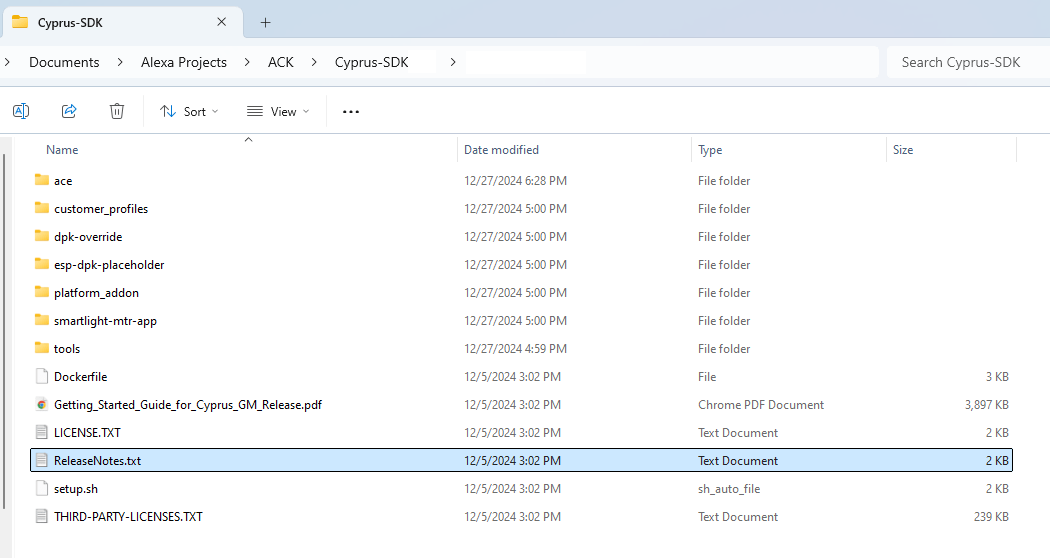
ACK SDK for Matter folder layout
Prerequisites
Before you start, make sure that you have the following items:- An approved ACK project and an ACK support engineer assigned to your project. For details, see Apply for an ACK Project.
- A Windows, MacOS, or Ubuntu 22.04 LTS host machine with a USB port.
- ACK development kit for ACK SDK for Matter.
- USB cable to connect the development board to the host machine.
- Access to the ACK SDK for Matter provided by your ACK support engineer. To start a project, see Apply for an ACK Project.
- If you have an Espressif development board, sign up for a GitLab account and request access to the Espressif repo. For access to the repo, send email to ack-access@espressif.com.
- If you have a Beken development board, send email to ack-support@bekencorp.com.
- Ubuntu 22.04 LTS Operating System installed on your computer or in a virtual machine (VM). You need at least 20 GB for the ACK packages. Ubuntu 22.04 comes with Python 3.10. These instructions require python 3.10.
Verify Python version To check the version of python installed on your machine, enter the following command at the Microsoft command prompt.
- A Git repository available in your Ubuntu development environment. You can add the ACK SDK for Matter to an existing Git repository or initialize a new repository in the SDK directory.
Steps to set up your development environment
Complete the following steps to download and install required packages to build device apps with the ACK SDK for Matter.- Download required packages.
- Build Matter tools.
- Install ACK SDK tools.
- Download the ZAP tool.
- Connect your host machine to the development kit.
Step 1: Download required packages
In this step, you download the required ACK SDK and vendor packages from your VM terminal window. To download ACK SDK and vendor packages- To download the GN build tools, in your browser, open GN, and then download and unpack the latest version of the GN binary for Linux.
- In an Ubuntu VM terminal, navigate to your home directory, and then edit
.profileto add the GN directory path to yourPATHvariable. Save the file.
- To update your
PATHvariable, log out of the VM, and then log back in. - To install Linux dependencies, at the command prompt, enter the following command.
- If you already downloaded the SDK and extracted the files, go to Step 9.
- To download the ACK SDK for Matter, navigate to the AWS S3 bucket provided by the ACK support engineer, and then download the
Cyprus-SDKzip file. - To extract the files into a destination directory, such as
Cyprus-SDK, enter the following command.
- Verify the
Cyprus-SDKdirectory was created successfully. - If you have a Beken development kit, contact the ACK team for steps to download the required packages.
- If you have an Espressif development kit, complete the following steps to download the required packages.
To download the packages, you need a GitLab account and access to the Espressif repo.
Download Espressif packages
Download Espressif packages
To download and install Espressif packages
- Download the Espressif package from GitLab, and then in your terminal window, enter the following command.
- Verify the
esp-dpkdirectory was created successfully. - To integrate the Amazon and Espressif packages, navigate to the
Cyprus-SDKdirectory. - Move the
esp-dpkdirectory into theCyprus-SDKdirectory at the same level as the directory placeholder, namedesp-dpk-placeholder. - Verify the
esp-dpkdirectory underCyprus-SDK, and then removeesp-dpk-placeholder.
- If you downloaded the SDK to an existing Git repository, go to step 13.
- In your VM terminal window, navigate to the
Cyprus-SDKdirectory. - To add a Git repository to the SDK, at the command prompt, enter the following command.
- To commit the SDK files, at the command prompt, enter the following commands.
Step 2: Build Matter tools
In this step, you clone and build the Matter SDK from the Matter Git repo. For more details, see Building Matter. To build Matter tools- To check out the Matter repo, follow the instructions in Checking out All Platforms.
- To set up the environment, follow the instructions in Prepare for building.
- To build the Matter SDK, follow the instructions in Build for the host OS (Linux or macOS).
- To build the
chip-tool, follow the instructions in Building from source.
Thechip-toolacts as a Matter controller that allows you to commission your device to the Matter network and use Matter commands to communicate with your device. - To build the
chip-certtool, follow the instructions in Building.
You use thechip-certtool to generate and verify Matter certificates. - In a convenient place, such as Notepad on Windows or TextEdit on Mac, paste the directory where you placed the
chip-toolandchip-certtools.
Step 3: Install ACK SDK tools
In this step, you install the ACK SDK tools package on your host machine. Before you start, make sure that you have Python 3.10 and the Python package manager installed. For prototype devices, you use the ACK SDK tools to provision the device with test certificates. For production devices, you use these tools to run a Matter server, provision the ACK production module, lock the module, and more. To install the ACK SDK tools- To download the ACK SDK tools package, navigate to the tools folder in the AWS S3 bucket, and then download the
ACK_SDK_Tools-matterzip file. - To extract the files into a destination folder at the same level as the
Cyprus-SDK, enter the following command in a Windows terminal.
- To install the
acksdktoolspackage, navigate to the destination folder, and then, enter the following command.
- To verify the ACK SDK tools installed correctly, enter the following command.
- Verify that you see the
acksdktoolspackage in the list.
Step 4: Download the ZAP tool
The ZCL Advanced Platform (ZAP) tool is a user interface developed by the CSA to customize Matter clusters, attributes, and commands. In this step, you download and unpack the ZAP package on your host machine. To download the ZAP tool- Navigate to the ZAP repository in GitHub.
- On the right side, under Releases, choose Latest.
- Download the ZIP file for your host machine type.
- To extract the files into a destination directory of your choice, in your VM terminal, enter the following command.
Step 5: Connect your host machine to the development kit
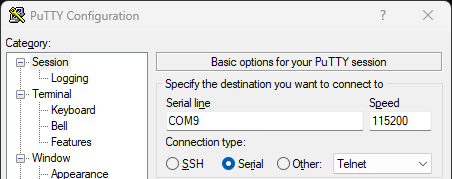
Before you can run commands on the development kit, you connect your host machine over a serial port. If your host machine is an Ubuntu VM or a Mac, use thescreen command in a terminal window. For Windows, use PuTTY.
Complete the following instructions to connect your host machine to the serial console on the development kit. Select the tab for Ubuntu, Windows, or Mac based on your host machine type.
- Ubuntu VM
- Windows host machine
- Mac host machine
To connect your Ubuntu VM to the development kit
- Navigate to VM settings, and then enable USB support.
- Depending on your virtualization software, add a USB filter to select the USB device.
- Connect a USB cable from your host machine to the debug port on the development kit.
- Select the USB device to connect it to the VM.
- In an Ubuntu terminal window, at the command prompt, enter the following command to add the user to the dialout group for access to the serial port.
- To identify the serial port, enter the following command.
- In a convenient place, such as Notepad on Windows or TextEdit on Mac, paste the port number.
- To connect to the development kit with a baud rate of 115200, enter the following command in an Ubuntu VM terminal window. Use the port number that you saved in the previous step.
This command opens a new terminal window on the development kit.
- To verify your Ubuntu VM connects to the development kit, enter
?in the terminal window.
The command displays the list of available commands on the development kit.