

- Client: Your user-facing phone app for Android or iOS. By making your phone app a Matter client, the user can discover casting targets such as a Fire TV. They can also cast content and control casting sessions.
- Content app: Your user-facing app on a Fire TV device running on Vega. By making your Vega app a Matter content app, clients are able to control it. For example, they can start playback of specific content.
Step 1: Integrate the Matter Casting SDK into your client app
The client (phone app) integration for Matter Casting on Vega works the same as for Fire OS. Your Android or iOS phone app uses the Matter Casting SDK to discover players, establish connections, and send commands. No changes are required to your phone app to support Matter Casting on Vega devices. For full details on integrating the Matter Casting SDK into your client app, including build and setup, commissioning, and device attestation, see Step 1 in the Fire OS Matter Casting Integration guide.Step 2: Integrate Matter Casting into your Vega app
On Vega, content app integration is conceptually similar to Fire OS, but uses different APIs. Instead of working directly with Matter protocol constructs such as AIDL files, a Matter agent client, andBroadcastReceivers, your Vega app integrates with Vega Platform.
Vega Platform provides a set of modality-agnostic APIs organized into clusters, which are groups of related commands and attributes. Your content app registers as a provider for the clusters it supports, and the Vega Matter Casting service handles communication between your provider app and your client phone app.
Architecture overview
On Vega OS, the Vega platform Matter Casting service handles the Matter protocol layer and translates between your phone app and your Vega content app.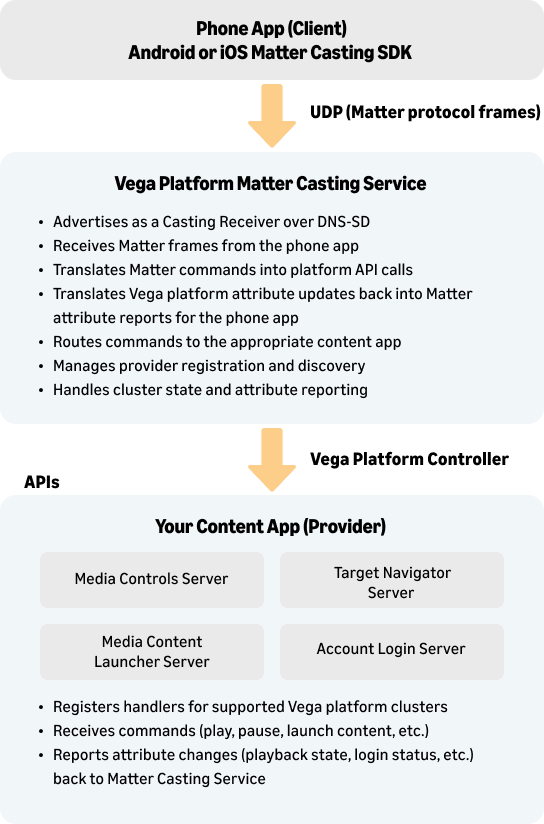 The key benefit of this architecture is that your content app never interacts with the Matter protocol directly. You implement standard Vega platform cluster handlers, and the Vega platform Matter Casting service handles all protocol translation.
Matter cluster to Vega platform cluster mapping
Matter Casting defines several clusters. Both Fire OS and Vega architecture include some clusters that are handled by the system and require no content app action. In Vega, some clusters map to Vega platform clusters that your content app must implement.System-handled clusters
No content app action is required to implement this code.Content app clusters
Your Vega content app implements these clusters by registering as a provider.1. Update your app manifest
Your Vega app’s manifest.toml file must be updated to declare Matter Casting support and the Vega platform clusters your app provides. This is the Vega equivalent of updating the AndroidManifest.xml in Fire OS.Matter Casting configuration
Add the[offers.matter-casting] section to declare your app’s Matter Casting identity. The vendor-id and product-id must match the values in your Device Attestation Certificate (DAC). For more information, see App Attestation.
For development, you may use the following example values. This section is placed in the [offers] area of your manifest.
Full manifest example
The following example shows a complete manifest.toml for a Vega content app that supports Matter Casting with Content Launcher, Media Controls, Account Login, and Target Navigator clusters. Replace com.amazondeveloper.media.sample with your app’s package ID.- React Native 0.72
- React Native 0.83
Key points about the manifest:
- The
[offers.matter-casting]section declares your app’s Matter identity (vendor ID, product ID, and vendor name) for the Matter Casting service. - The
[[extras]]section withkey = "interface.provider"declares which Vega platform clusters your app supports. This is like the static_matter_clusters JSON file in Fire OS. - The
categoriesfield must include"com.amazon.category.kepler.media"on the primary interactive component. - The Account Login cluster uses
override_attribute_componentto route status queries to a headless service component, so the system can query login status without waking up the full app UI. - The Media Controls
command_optionsand features fields declare which optional commands and features your app supports. Adjust these according to your app’s capabilities.
2. Add package dependencies
Add the following dependencies to your package.json file for the Vega platform clusters you support.3. Implement the Content Launcher cluster
The Content Launcher cluster corresponds to the Matter Content Launcher cluster. It enables the phone app to launch specific content in your Vega app. When the phone app sends a Matter Content Launcher command, the Matter Casting service translates it into a Vega platform Content Launcher call. Your app receives this through the IContentLauncherHandler interface, specifically the handleLaunchContent callback. Your handler receives the following.contentSearch— describes the content the user wants to watch or search for, including parameter lists with entity types, values, and external IDs.autoPlay— iftrue, play the content directly (quick play). Iffalse, show search results.optionalFields— additional optional parameters.
handleLaunchContent implementation.
4. Implement the Media Controls cluster
The Media Controls cluster corresponds to the Matter Media Playback cluster. It enables the phone app to control media playback in your Vega app — play, pause, stop, seek, fast forward, rewind, skip forward, skip backward, and more. When a phone app sends a Matter Media Playback command, the Matter Casting service translates it into a Vega platform Media Controls call. Your app receives this through theIMediaControlHandlerAsync interface, which includes methods such as handlePlay, handlePause, handleStop, handleSeek, and others.
Your app maintains a MediaSessionState object that describes the current playback state, capabilities, and supported controls. When the playback state changes, you report it back through Vega platform API updateMediaSessionStates(). The Matter Casting service then translates these state updates into Matter attribute reports that the phone app can subscribe to.
Key concepts:
- Provider registration: Your app registers its handler using
MediaControlServerComponentAsync.getOrMakeServer()andsetHandlerForComponent(). - Session state: Maintain a
MediaSessionStateobject with playback status, position, speed, capabilities, and supported actions. - Multiple sessions: Media Controls supports multiple sessions for features like picture-in-picture.
MediaPlayState and MediaControlHandler.
Next, you can add the following inside MediaControlHandlerAsync to add support needed for the Matter Media Playback cluster. Each handler returns a . The provider MUST resolve or reject the returned Promise for every handler invocation. The Matter Casting service enforces a 25-second command timeout, so the provider MUST resolve the Promise within 20 seconds to allow for transport and processing overhead. If no response is received within 25 seconds, your phone app will receive a timeout error.
5. Implement the Account Login cluster
The Account Login cluster corresponds to the Matter Account Login cluster. It serves two purposes in the context of Matter Casting.- Commissioning passcode flow: During the initial commissioning process, the player can invoke the
GetSetupPINcommand on your content app to obtain a commissioning passcode. This enables the player to commission the client without requiring the user to manually enter a code. TheGetSetupPINcommand includes aTempAccountIdentifierargument (Rotating ID) passed from the client in the UDC message. Your content app typically uses its own cloud service to match this identifier and relay the passcode. - Login status reporting: Your app reports its authentication status (
SIGNED_INorSIGNED_OUT) to the system. The Fire TV UI uses this information to display appropriate watch options (such as “Watch Now” or “Subscribe”) and is also used during Matter Casting to determine client access.
- A service component declared in manifest.toml.
- The
override_attribute_componentsetting to route status queries to the service. - A headless entry point registered using
@amazon-devices/headless-task-manager. - Persistent storage (such as
AsyncStorage) to share login state between the interactive and service components.
AccountLoginWrapper and service.js.
Next, you can add the following inside AccountLoginWrapper to add support for the Matter Account Login cluster. Each handler returns a Promise for handleGetSetupPin, for handleLogin and handleLogout). The provider MUST resolve or reject the returned promise for every handler invocation. The Matter Casting service enforces a 25-second command timeout, so the provider MUST resolve the Promise within 20 seconds to allow for transport and processing overhead. If no response is received within 25 seconds, the phone app will receive a timeout error.
6. Implement the Target Navigator cluster
The Target Navigator cluster corresponds to the Matter Target Navigator cluster. It provides an interface for navigating between playback targets within your app, such as different screens, content categories, or output endpoints. Your app registers a handler that receives target navigation requests. When the phone app sends a Matter Target Navigator command, the Matter Casting service translates it into a Vega platform Target Navigator call. Your handler receives aStandardTargetIdentifier1 object containing the identifier of the target to navigate to.
Key concepts:
- Target discovery: Your app exposes available targets with metadata including a unique identifier and a human-readable name.
- Target selection: Your handler processes navigation requests and switches to the requested target.
7. Report attribute changes
A critical part of Matter Casting is keeping the phone app informed about the current state of your content app. When your content app’s state changes, you must report these changes back through Vega Platform APIs. State change examples might be the playback starts, pauses, or the user logs in. The Vega Matter Casting Service internally translates these state changes into Matter attribute reports that the phone app receives through its subscriptions. Each cluster has its own mechanism for reporting attribute changes.
Media Controls
8. Install your Vega app on demand
If the user doesn’t have your content app installed and they attempt to cast to it, the system should prompt them to install the app. This is handled at the system level using the App Launcher cluster. The phone app provides the package name in theApplicationID information of the launch app cluster payload, and the system matches this against the Vega App Store to facilitate installation.
This is the exact same client behavior as in Fire TV. No additional integration is required from your content app for this functionality. Make sure that your app’s package name in manifest.toml matches what is published in the Vega App Store.
Step 3: Interact with players
A video player interaction might be discovery, connection, endpoint selection, issuing commands, reading attributes, or subscribing to events. These interactions are handled by the phone app using the Matter Casting SDK. This interaction is the same regardless of whether the player is running Fire OS or Vega OS. For full details on discovering players, connecting, selecting endpoints, and interacting with your content app from the phone, see Step 3 in the Fire OS Matter Casting Integration guide.Related topics
- Overview of Matter Casting (Fire OS)
- Matter Casting Integration (Fire OS)
- App Attestation (Fire OS)
- Develop for Vega
- Vega App Manifest File Overview
- Content Launcher Integration Guide
- Get Started with Vega Media Controls
- Vega Target Navigator Provider API
