

Before you begin
You must deploy your add-on before you can test it in the simulator. For deployment steps, see one of the following:- Category action add-on—Deploy the add-on (Category Action)
- Category MCP add-on—Connect your MCP server to Alexa+
- MCP Toolkit add-on—Connect your MCP server to Alexa+ (MCP Toolkit)
Open the simulator
Log in to the developer console to access the simulator. After you are logged in to the console, do one of the following:- From the My Add-ons page: Find your add-on and click Test in Simulator.
- From anywhere in the console: Click the Simulator button in the left-hand navigation.
- Direct URL: Navigate to Alexa+ Simulator.
Simulator interface
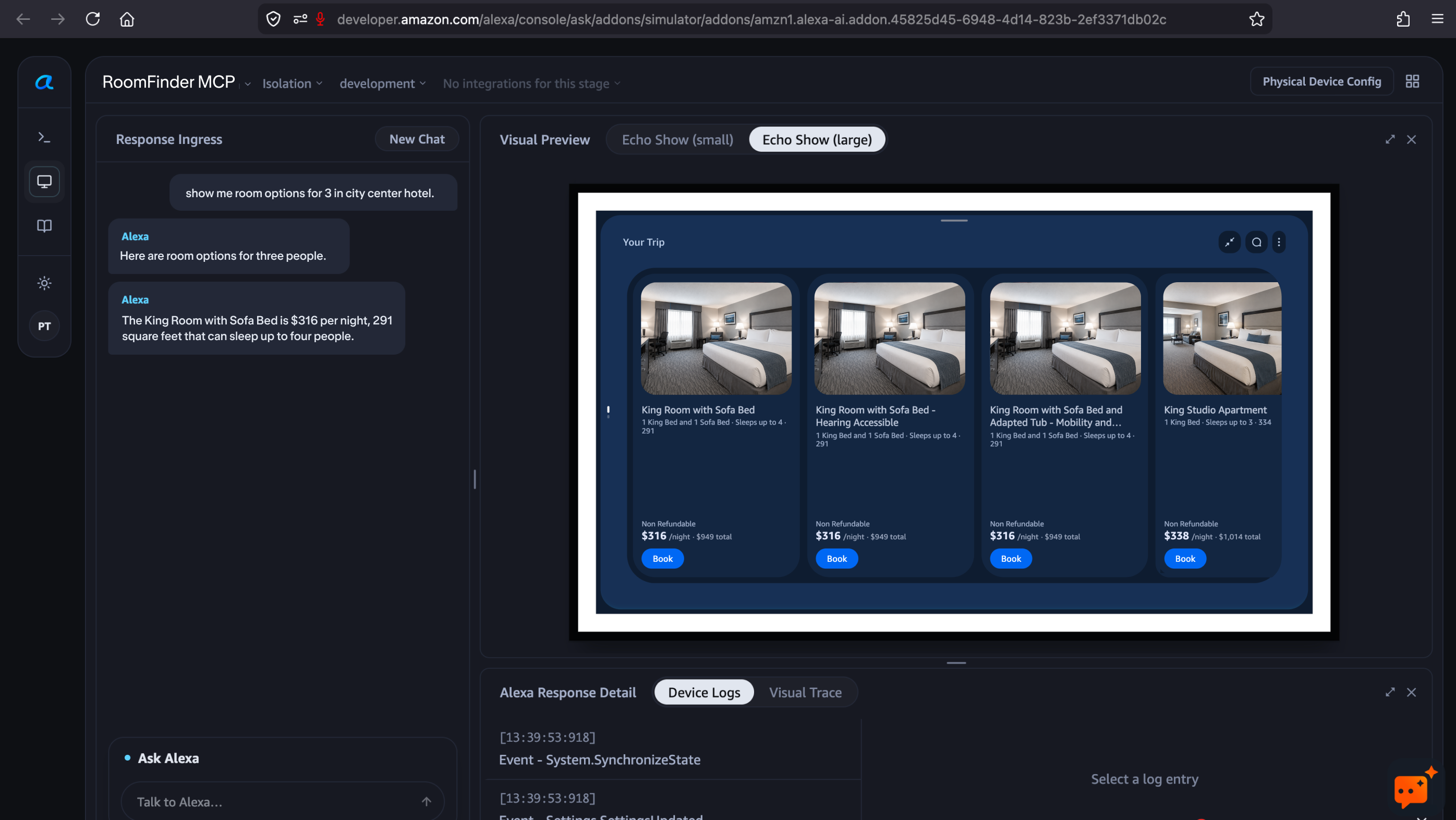 The simulator interface contains the following elements:
Select the testing mode
Use the Mode drop-down in the top bar to choose a testing mode:- Isolation — Routes all requests exclusively to your add-on, bypassing Alexa’s natural routing. Use this mode to validate your add-on’s tools and responses without interference from other add-ons or built-in Alexa capabilities.
- Global — Full Alexa+ routing is active, the same as in production. All other add-ons and built-in capabilities are available alongside yours. Use this mode to verify that Alexa+ correctly selects your add-on based on customer intent.
Select the add-on stage
Use the Stage drop-down in the top bar to choose which version of your add-on to test against:Test on a physical device
You can route your simulator session to a physical Alexa device for on-device testing.- Click Physical Device Config in the top-right corner of the simulator.
- In the Configuration Override panel, select your device from the Device drop-down.
- Verify the Integration and Integration Stage under Set Overrides.
- Click Save.
