

Ask the DevAssistant for support
The DevAssistant is available on every Alexa developer page. To open the chat without leaving your current page, choose the DevAssistant icon. The DevAssistant can help you in the following ways:
- Diagnose errors and failed certifications.
- Find relevant technical documentation.
- Understand Alexa smart home interfaces and APIs.
- Get help with account and publishing issues.
- Create support cases with full context.
- View the status of your support cases.
- Add comments to your open cases.
- Sign in to Amazon developer services.
- Choose the DevAssistant icon or open the full-screen version.
- To get help with Alexa, on the All Amazon Developer menu, select Alexa or Alexa+, or enter Alexa or Alexa+ in the chat box.
- In the chat box, enter your question or issue in your own words.
- Continue to chat with the assistant while it requests missing or ambiguous information.
Create a support case
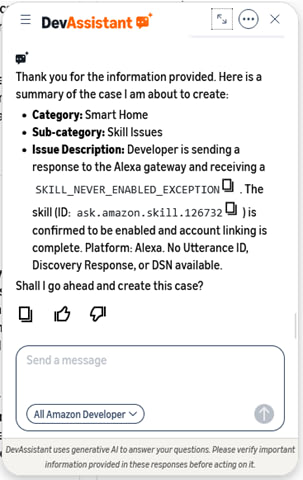
If the DevAssistant can’t answer your questions or you need further assistance, it offers to create a support case on your behalf. The case includes your conversation. If you want to open a support case before the DevAssistant offers to open one, enter file a case in the chat box. After the assistant creates a support case, Amazon assigns a case number to your inquiry. Amazon then contacts you at the email address associated with your Amazon developer account. To submit your support case- Answer any questions the assistant asks.
- Review the generated case summary.
- To add more details, chat with the assistant.
- To create the case, enter Yes in the chat box.
View support case status
You can view the status of your open cases at any time by asking the DevAssistant. For example, enter What’s the status of my open cases? or Show my open cases. The DevAssistant displays your cases with the following details:- Case ID – Unique ID for your case.
- Subject – Summary of the issue.
- Category – Topic area of the case.
- Status – Current state, such as In Progress, Resolved, or Pending.
- Last updated – Date of the most recent action.
- Assigned to – Current owner and action being taken.
Update a support case
To add more details to a case or reply to the support team, chat with the DevAssistant. For example, enter Add a comment to case 12345678 or Reply to my case. To add more information, you can also reply directly to your confirmation email from the Amazon support team. Comments can be up to 10,000 characters. Before the DevAssistant posts your comment, the assistant shows you a summary for your confirmation.Case resolution
A typical response time is two business days. After Amazon resolves a case, you can reopen the case by asking the DevAssistant.Amazon support policies
Amazon strives to provide quick and accurate support to resolve questions. To protect developers and customers, Amazon declines requests that aren’t consistent with Amazon policies. If the Alexa developer support team informs you that they won’t take any further action on an issue, please do not try to reopen the case or raise the issue in other cases. In addition, the Alexa developer support team routes security-related concerns to the appropriate team. Responses to such inquiries will vary based on the complexity and severity of the issue.Contact your Alexa+ SA
For support with building, testing, or certifying your Alexa+ add-on, contact your assigned Alexa+ Solutions Architect (SA). Your SA can help with:- Technical guidance on SPI implementation and integration.
- Troubleshooting deployment and certification issues.
- Answering questions about supported capabilities and best practices.
- Coordinating timelines for launch readiness.
