A user-initiated trigger is an action that occurs on your Alexa Connect Kit (ACK)-based device, after a user completes a pre-programmed pattern, such as pressing a unique button…
A user-initiated trigger is an action that occurs on your Alexa Connect Kit (ACK)-based device, after a user completes a pre-programmed pattern, such as pressing a unique button combination. For example:
Initiate a factory reset after completing five consecutive physical power on/off cycles, such as power cycling a lamp.
Initiate device setup mode after pressing and holding a specific button, such as a connect to Wi-Fi button.
You can program the following user-initiated triggers on ACK-based device: setup mode, factory reset, and logs upload.
ACK-based devices use Amazon Frustration-Free Setup (FFS) to connect devices to a Wi-Fi network and register them with Alexa. By implementing FFS on your device, you can use the same Alexa setup and authentication technology that Amazon uses for its own devices. You don’t have to create a separate companion app to guide the user through setup. And the user, in turn, doesn’t have to switch between different apps during the setup process.To learn about each of the FFS setup modes, click the following tabs:
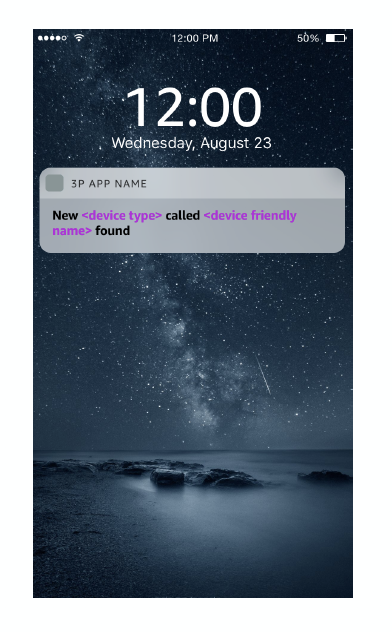
Zero-Touch Setup (ZTS) is the ideal setup flow for ACK-based devices, because it doesn’t require users to initiate the set up process explicitly. This automation can help lower setup friction.ZTS uses the Alexa app, or other nearby Amazon devices (Echo, Fire TV), to auto-detect when your device powers on. It then attempts to configure the device without asking the user to enter their Amazon account information or Wi-Fi credentials.
Your device packaging has an outer FFS barcode that contains information uniquely identifying the device.
During product shipment, Amazon attempts to associate the purchased device with the correct user account, which was supplied during the amazon.com checkout process.
When a user powers on the device, nearby FFS provisioners (such as an Echo device or Fire TV) detect the device and then attempt to onboard the product to the Wi-Fi network.
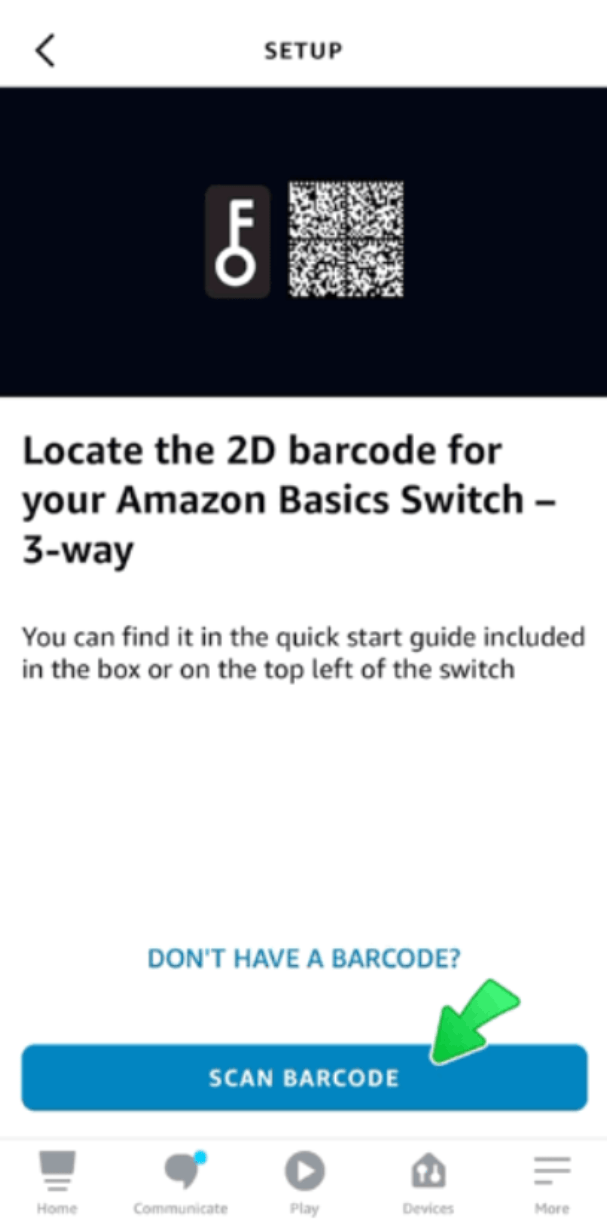
If Zero-Touch Setup (ZTS) doesn’t work, use Barcode Setup (BCS) as the first fallback method to set up your devices.To register a device with BCS, the user opens the Alexa app and then follows the on-screen instructions. Here, the user must find, and then scan an FFS 2D inner barcode for the device, which is typically provided with the device. After a user scans the barcode, the Alexa app tries to onboard the device to the applicable Wi-Fi network, and register it with Alexa.
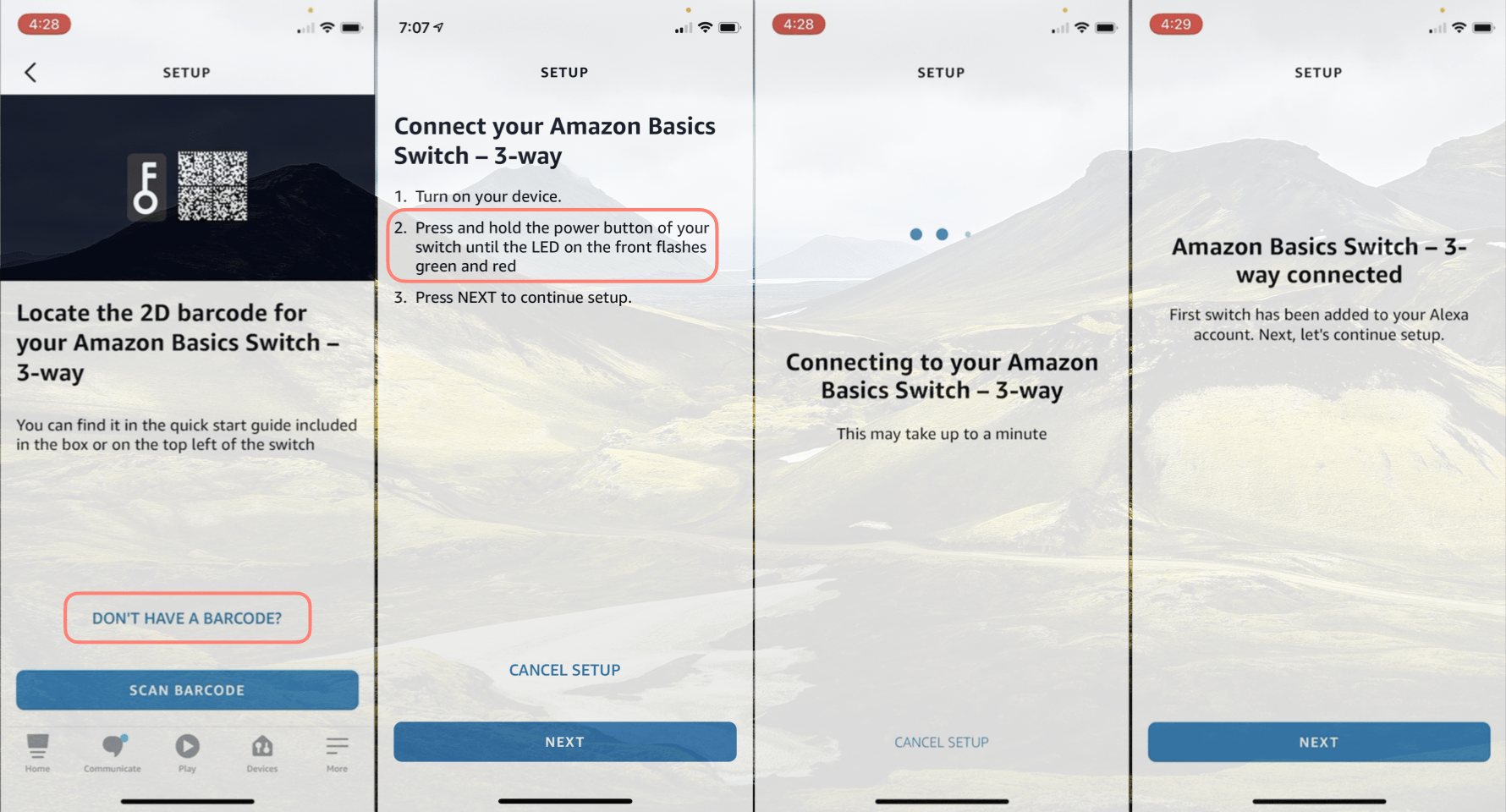
If Zero-Touch Setup (ZTS) and Barcode Setup (BCS) don’t work, User Guided Setup (UGS) provides a final fallback method to set up your devices. For example, if ZTS fails (because the device wasn’t registered on amazon.com) and BCS is unavailable (because the barcode is missing), users should set up the device by using UGS.After the user taps the DON’T HAVE A BARCODE? button in the Alexa app, UGS guides them through a predefined setup flow.This approach requires the user to physically interact with the device to initiate the device setup process.
You implemented a user-Initiated trigger on your device to start UGS. For example, by using a button combination, power on/off pattern, or choosing an item in a menu.
The following images show an example of a device triggering UGS. In these images, the user selects DON’T HAVE A BARCODE?, and then finishes setting their device up.
For Matter-enabled ACK devices not registered to the customer’s Amazon account. Light-Touch Setup (LTS) provides device setup in about two taps, removing the need to enter network credentials or scan QR codes. Similar to ZTS, an existing device looks for any new devices within range and offers a setup prompt to the customer asking if they would like to set up the device.LTS requires the user to interact with the Alexa app.
LTS is the typical fallback scenario when the device isn’t registered to the customer’s Amazon account. For example:
Device not purchased from Amazon.com.
Device bought as a gift.
Device transferred between accounts.
Device packaging lacks suitable bar code.
To get started, the users follows the steps in the Alexa app. After a customer accepts the setup prompt, LTS shares credentials and registers the device with Alexa.
A factory reset typically occurs after a user completes your predefined factory reset trigger or the user removes the device from the Alexa app. For example, the user might press and hold a designated reset button, or enter a specific pattern on a keypad.When the factory reset occurs on the device, your device must erase all locally stored user configurations and preferences, de-register itself from Alexa (if the device is online), and then revert to the factory default state. When the factory reset occurs from the Alexa app, the ACK SDK communicates to your application that factory reset functionality was executed. Your application must then delete any stored user-specific configurations, and then return the device to original factory settings.For ACK module implementations, after the reset finishes, your ACK Device SDK application must also communicate the factory reset condition to the ACK module. This communication removes all Wi-Fi credentials from the device, and then de-registers the device from Alexa.
When a factory reset completes, the device enters the ready for setup state.
If a user removes a device from the Alexa app, it automatically triggers a factory reset. Here, the device receives a factory reset event from Alexa services.
Document your factory reset instructions in the user manual of your device and on a relevant device support page.
You can program a trigger that uploads logs generated by the ACK device by using the ACK Analytics Service. For details about collecting logs, see ACK Analytics Service.
The following example provides a mock template to define the user-initiated triggers for a switch.
Device trigger
User action (device input)
Indication of trigger on device
Barcode Setup (BCS)
No user action required. The FFS inner barcode that’s required to start BCS is printed in the user manual and attached to the metal plate of the switch.
BCS automatically starts after the device powers on (when the device isn’t registered). LED starts blinking to indicate that the device is in setup mode.
User-Guided Setup (UGS)
Press and hold the power switch in the On position for 10 seconds.
LED blinks yellow three times to confirm that the device is in UGS mode. LED continues to blink while in setup mode.
Factory reset
Quickly turn the power switch On and Off five times in a row, then hold in the On position for 10 seconds.
LED flashes red five times to confirm a factory reset.
Upload Logs
Press and hold the power switch in the On position for 20 seconds. The LED blinks five times to confirm that the log operation started.
LED blinks green five times after 30 seconds. Blinks twice when completed successfully.