

- Integrated debugging tools
- Real-time performance monitoring
- Built-in app optimization features
- Direct device management for Fire TV Stick
- Testing capabilities
Verify your setup
-
Open VS Code or Kiro, and look for the Vega extension icon
 in the activity bar.
- To check your installed extensions, go to Code > Settings > Extensions (VS Code) or Kiro > Settings > Extensions (Kiro), and enter “Vega Studio” in the Extensions: Marketplace search field. If you see the Vega extension icon, continue to Build Your App, or explore the Vega Studio panel and advanced configuration options. If you don’t see the Vega extension icon, continue to Install Vega Studio manually.
Install Vega Studio manually
Choose one of these installation options: Microsoft Marketplace, the Vega SDK, or the Open VSX Registry (for Kiro).Option 1: Install from Microsoft Marketplace
- On the extension page, select Install.
- Select Open Visual Studio Code.
- If prompted, select Continue.
- Confirm that the Vega extension icon appears in the activity bar.
Option 2: Install from Vega SDK
-
Open a terminal, and run the following command:
- If prompted, select Reload.
- Confirm that the Vega extension icon appears in the activity bar.
Option 3: Install in Kiro from Open VSX Registry
- Go to the Vega Studio extension page on the Open VSX Registry.
- Select Download.
- Select the architecture that matches your system.
-
Open Kiro
 .
.
- To open the command palette, choose the settings icon > Command Palette…, or press Cmd+Shift+P (Mac) or Ctrl+Shift+P (Linux).
- Enter Extensions: Install from VSIX…, and then select the command.
-
Select the
.vsixfile that you downloaded in step 3. - Confirm that the Vega extension icon appears in the activity bar.
Explore the Vega Studio panel
After you install Vega Studio, you can access all its development tools from the Vega Studio panel.- Open VS Code or Kiro.
- Look for the Vega extension icon in the activity bar.
-
Select the Vega extension icon to open the Vega Studio panel, which contains the following sections:
- Projects: Create, manage, and organize your development projects
- Build Modes: Configure debug and release build settings
- Devices: Manage and monitor connected devices
- SDK Manager: Install, view, and switch between SDK versions
- App Performance Tools: Monitor and optimize app performance
- Help and Feedback: Access documentation and tutorials, and submit support requests
Manage your Vega projects
The Projects section lists your current projects with options to build, install, or run them.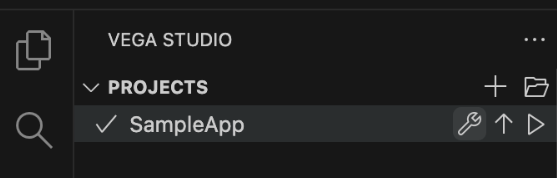
Select your build mode
The Build Modes section lets you choose between Debug and Release builds for your Vega app. Your selection applies to all later builds until you change it.
Debug mode
Debug mode is for development and testing. It includes debugging artifacts and enables the Metro Packager (React Native’s JavaScript bundler), which supports real-time code updates through Fast Refresh. Vega Studio automatically enables Fast Refresh when you use Debug mode. To use Fast Refresh:- Build your app in Vega Studio.
- Run your app on Vega Virtual Device or a Fire TV device.
- Change your code, and confirm that the changes appear on your device.
Release mode
Release mode creates optimized, production-ready code for deployment and publishing. It disables development features such as Fast Refresh, removes debugging information, and reduces file size to improve runtime performance.View your devices
The Devices section shows all virtual and physical devices connected to your computer. The device list updates automatically when you connect or disconnect a device. To run your project, select a device.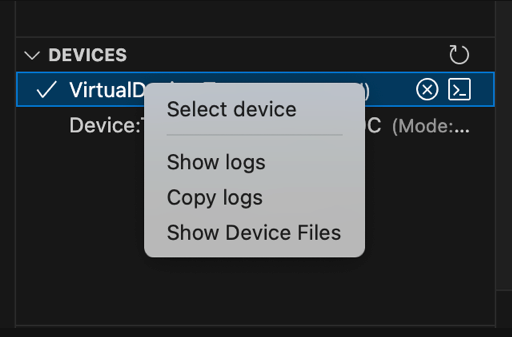 From the device context menu, you can start a virtual device.
 You can also open a terminal session to interact with a device directly.

Install the Vega SDK manager to switch versions
The SDK Manager section lets you install a new SDK version, view installed SDK versions, or switch between installed versions. To install a new SDK version:
- Select the SDK Manager section in the Vega Studio panel.
- Select Install New SDK or the + icon next to an available version.
- Wait for the installation to complete.
- Select the SDK Manager section in the Vega Studio panel.
- Select the version you want to activate.
- When prompted, reload VS Code or Kiro.
Access performance monitoring tools
The App Performance Tools section provides tools to monitor and optimize your app’s performance. Some tools are available only when your app runs on a physical device.
- Activity Monitor: Monitors app memory and CPU usage in real time
- Memory Monitor: Monitors app memory usage in real time
- App KPI Visualizer: Measures key performance indicators (KPIs) and verifies whether your app meets the performance standard
- Chrome Dev Tools: Inspects, debugs, and profiles your app as an alternative to the built-in VS Code debugger
Submit feedback or issues, find resources and guides
The Help and Feedback section provides these links:- Feedback: Lets you submit feedback or issues to the Vega team
- Documentation: Links to resources for getting started with Vega development
- Walkthrough: Provides guides for project setup, build modes, device management, and performance tools
- Create bug report: Gathers diagnostic information about your system, devices, and logs
 The Create bug report link opens the Bug Report tool, which gathers diagnostic information about your system, devices, and logs. The tool saves this information to a file that you can attach to a support ticket.
The report includes:
System information
The Create bug report link opens the Bug Report tool, which gathers diagnostic information about your system, devices, and logs. The tool saves this information to a file that you can attach to a support ticket.
The report includes:
System information
- Operating system details (platform, version, architecture)
- Hardware information (memory, CPU)
- Environment details (Node.js version, SDK version)
- List of connected Vega devices
- Device details (type, OS, architecture)
- Device status information
- Vega Studio extension logs
- React Native app logs
- Vega SDK logs
- Device logs (for connected devices)
- Latest aggregated crash report (ACR) from the device
Protect your privacy
Before you submit a bug report, review the entire file. It might contain personal information, such as usernames, home directory paths, file paths, or other sensitive data. Remove any private information before you submit the report.When to create a bug report
Create and submit a bug report when:- Vega Studio shows errors or unexpected behavior
- Vega Studio crashes or freezes
- Features don’t work as expected
- Vega Virtual Device or a physical device crashes
How to create a bug report
- In Vega Studio, open the Help and Feedback section.
-
Choose Create Bug Report.
Vega Studio does the following:
- Generates a bug report file (this might take a minute)
- Saves the file to your home directory
- Shows the file location
- Opens the Appstore Developer Support page
- On the Appstore Developer Support page, fill out the form.
- Attach the bug report file to your support ticket (10 MB size limit).
- Restart VS Code or Kiro.
- Repeat steps 1–4.
Need help?
Use these resources to resolve issues or find answers:- Create a support case to get direct help from Amazon support
- Use DevAssistant to find the information you need
- Search the community forum for solutions from other developers
Configure advanced options
Vega Studio provides advanced settings that customize the extension’s behavior for your workflow.Automatic device detection
Vega Studio automatically updates the device list to show connection status in real time. To turn automatic device detection on or off:
- Go to Extensions > Vega Studio.
- Go to Vega > Features: Automatic Device Detection.
- Select the checkbox to turn on the feature, or clear the checkbox to turn it off.
Build target architecture optimization
Vega Studio optimizes builds by creating artifacts only for your target device architecture, which reduces build times and package sizes.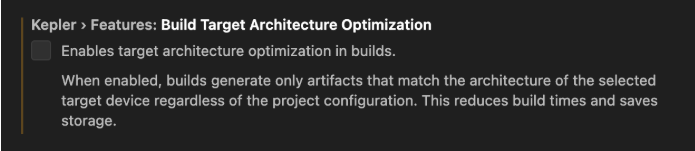 For example, when you target Fire TV Stick:
- Included: armv7 artifacts
- Excluded: x86_64 and aarch64 artifacts
- Go to Extensions > Vega Studio > Settings.
- Go to Vega > Features: Build Target Architecture Optimization.
- Select the checkbox to turn on the feature, or clear the checkbox to turn it off.
Launch options
Vega Studio lets you configure parameters for the launch app command in VS Code or Kiro. To configure launch options:-
Open settings:
- Mac: Code > Settings > Settings (VS Code) or Kiro > Settings > Settings (Kiro)
- Linux: File > Preferences > Settings
-
Choose the scope for your settings:
- User: Applies to all projects for the current user
- Workspace: Applies to all projects in the workspace
- Project: Applies to a specific project

- Go to Extensions > Vega Studio.
- In the Vega Launch Options section, enter your launch options.
Monorepo support
Vega Studio supports monorepo layouts throughnpm and Yarn workspaces (v0.20+). For setup instructions, configuration options, and troubleshooting, see Set Up Monorepo Support.
Next steps
Related topics
- Set Up Monorepo Support
- Vega Studio Commands
- Vega Studio Performance CLI
- Community: Inspect JS traces from Vega Apps
