

Prerequisites
- Install Visual Studio Code.
- Install Vega Studio extension (0.21 or later).
Steps to debug your Vega Web App
- Open your app with Vega Studio.
- Build a debug variant and launch it.
-
Launch your app one of these two ways.
- Launch from the command line.
- Select the Play button on the Vega Studio side bar.
- Launch Chrome DevTools from Vega Studio.
-
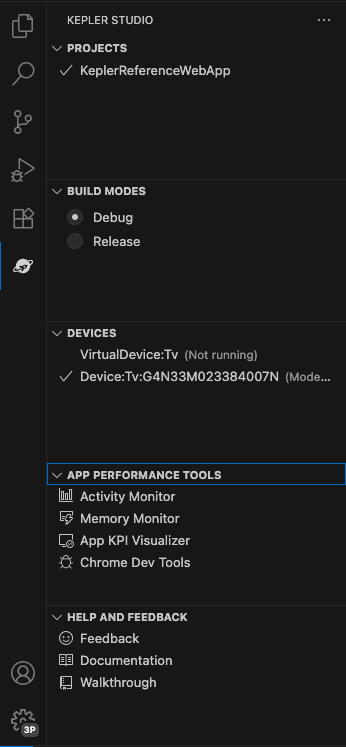
Open the Vega Studio side bar and select Chrome DevTools.
-
Notice the combo box to select the target runtime. Select WebView to debug HTML + JavaScript content running on WebView.

-
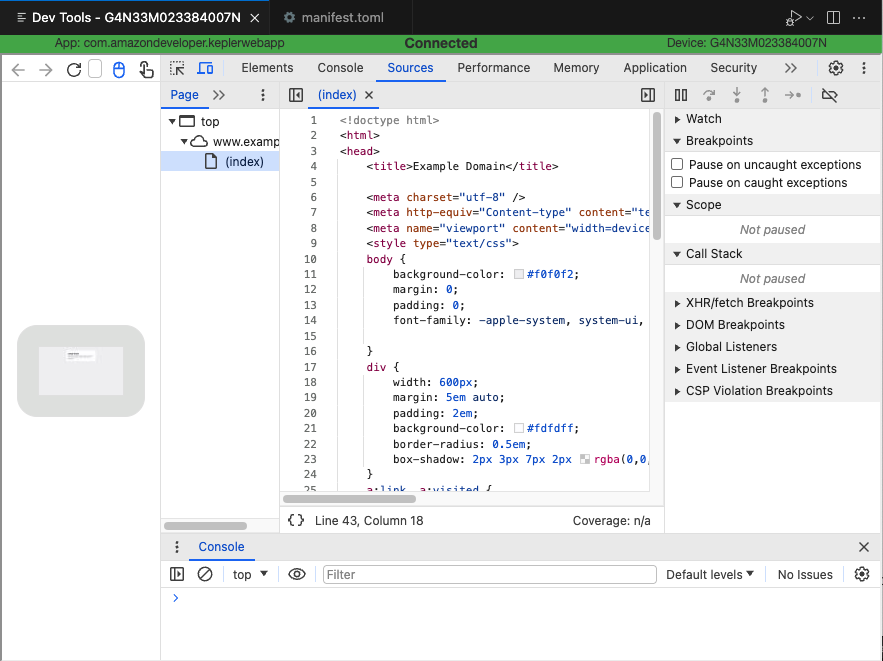
Chrome DevTools appears in the editor and attaches to the WebView runtime. You can inspect HTML and JavaScript source code, as well as set breakpoints in the JavaScript code.
Related topics
- For more about Chrome DevTools, see Use Chrome DevTools for App Profiling
- Overview of Vega Web Apps
