First-time sign-in or new customer sign-up
The following diagram shows the high-level process when a customer signs in to a Simple Sign-in enabled app for the first time and completes the account linking process. The same process occurs when a customer creates a new account for the app and completes account linking.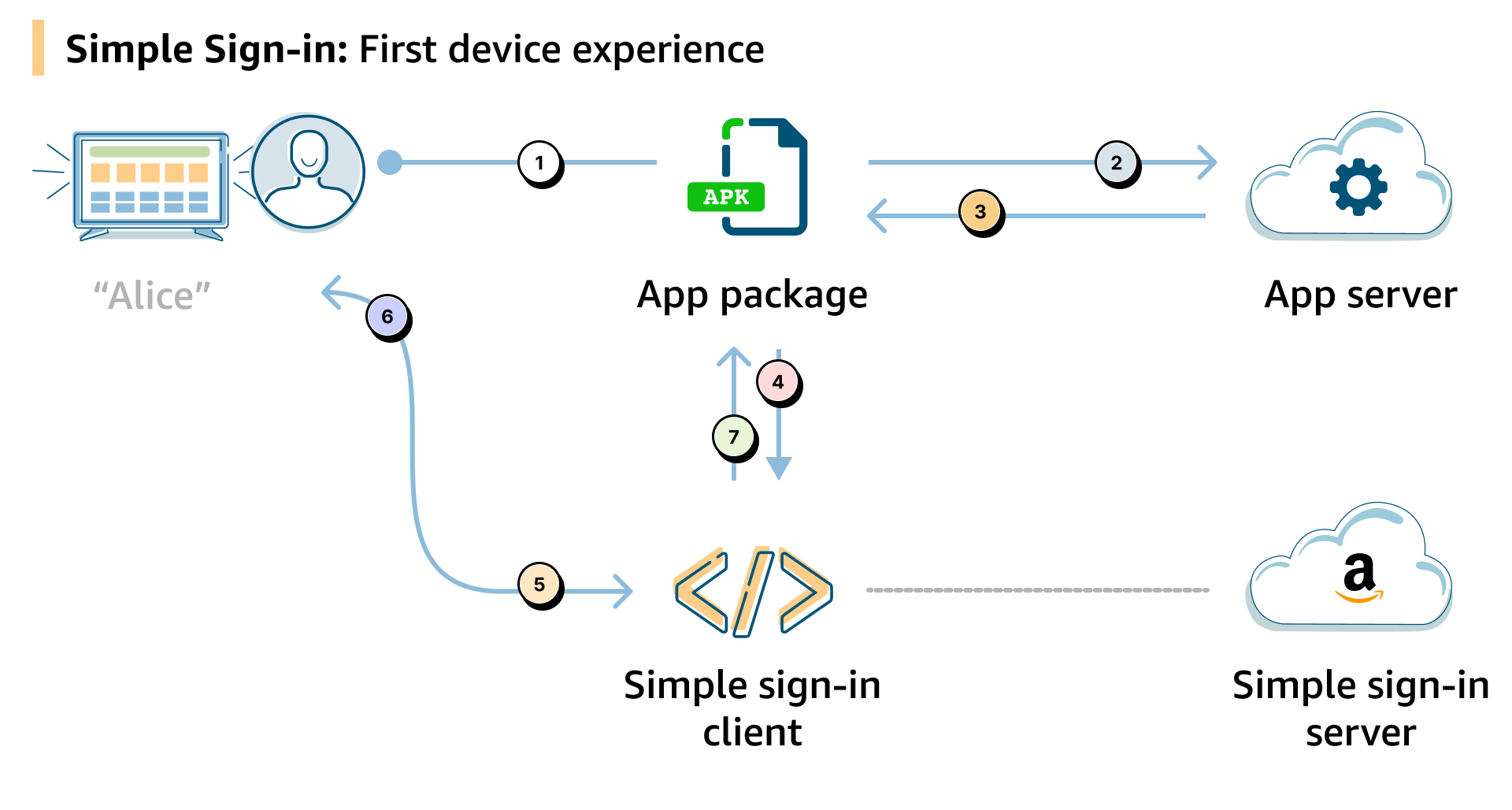
First-time app sign-in high-level diagram
- Alice signs in to your app by manually entering her login credentials.
Alternatively, Alice creates a new account for your app on her device, “Alice’s Fire TV,” which is registered to her Amazon account. - After Alice successfully signs in (or signs up with her new account), your app sends a request to your app server to issue a token that represents Alice’s identity.
- Your server generates a token and returns it back to the app.
- Your app sends a message to the Simple Sign-in client to get consent from Alice to link her login identity with her Amazon account. Your app includes the token in the request.
- The Simple Sign-in client prompts Alice to provide her consent to link accounts.
- When Alice confirms her approval, the Simple Sign-in client sets up account linking. The token persists on the Simple Sign-in server.
- The Simple Sign-in client communicates with your app, sharing the customer’s consent and the account linking status.
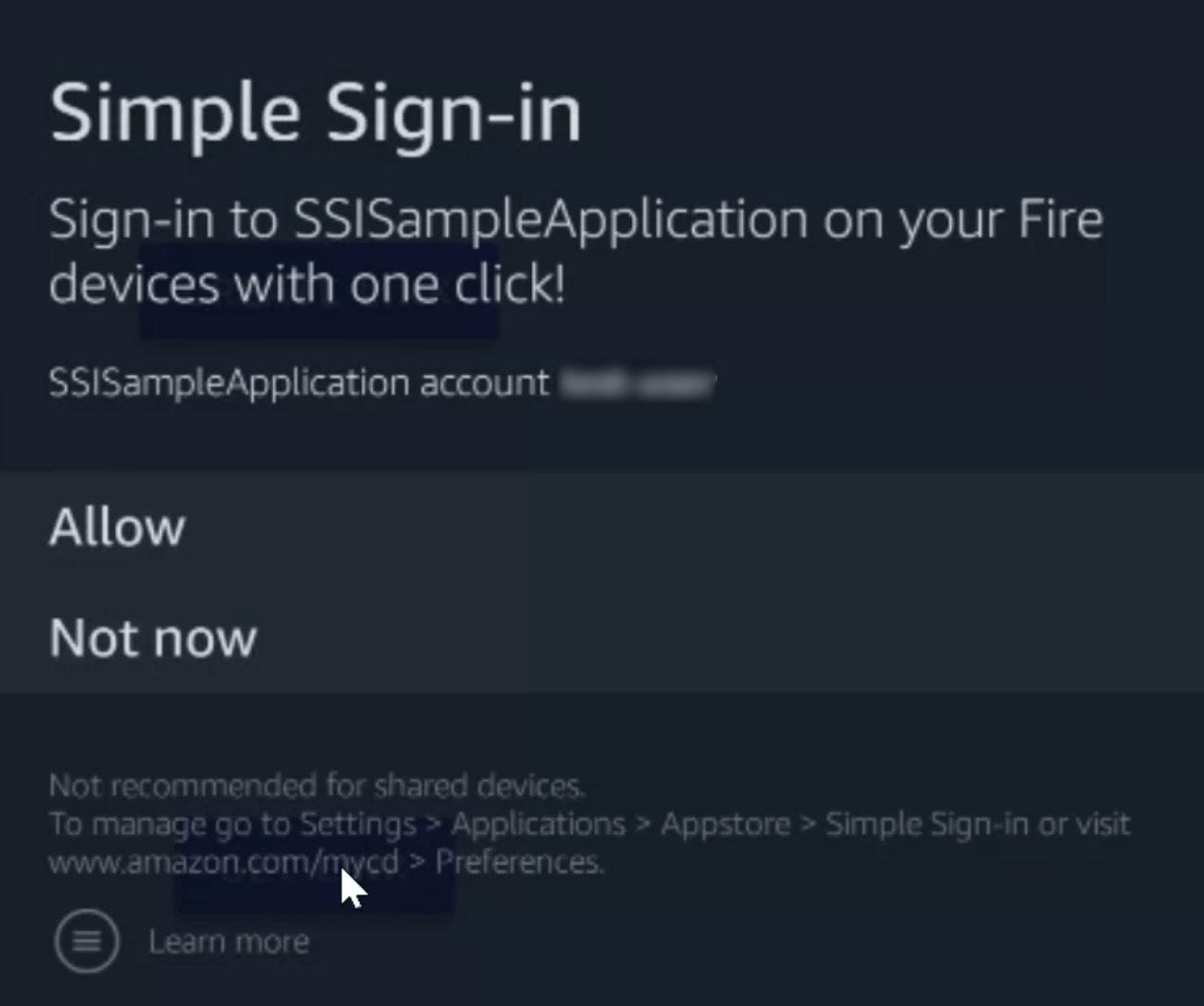
Fire TV dialog
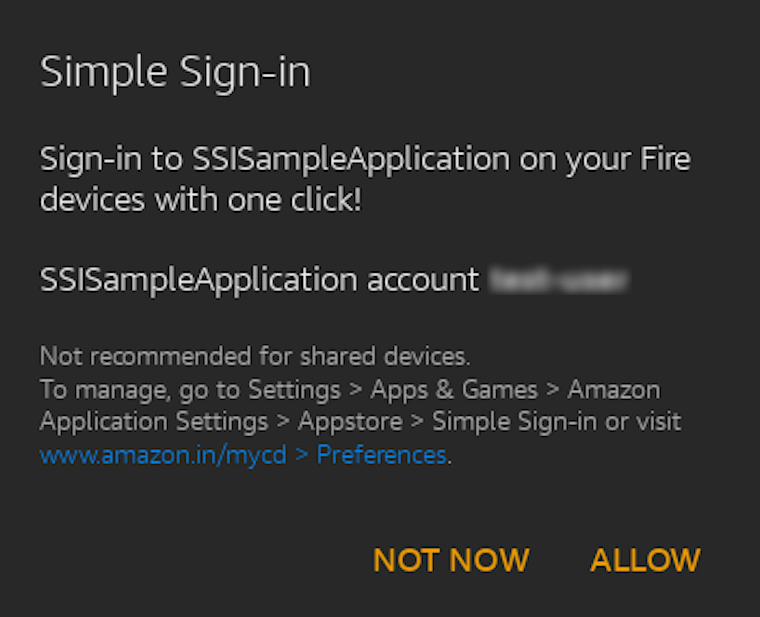
Fire tablet dialog
Detailed first-time sign-in and account linking
The following sequence diagram shows the end-to-end flow for various usage scenarios for first-time sign-in.
Account linking setup sequence diagram
Simplified sign-in on subsequent devices
A customer who has previously linked their app account signs in to the app on a new device and experiences a simplified sign-in flow. The simplified sign-in flow can also occur on the original device if the user signs out. The following diagram shows the simplified flow.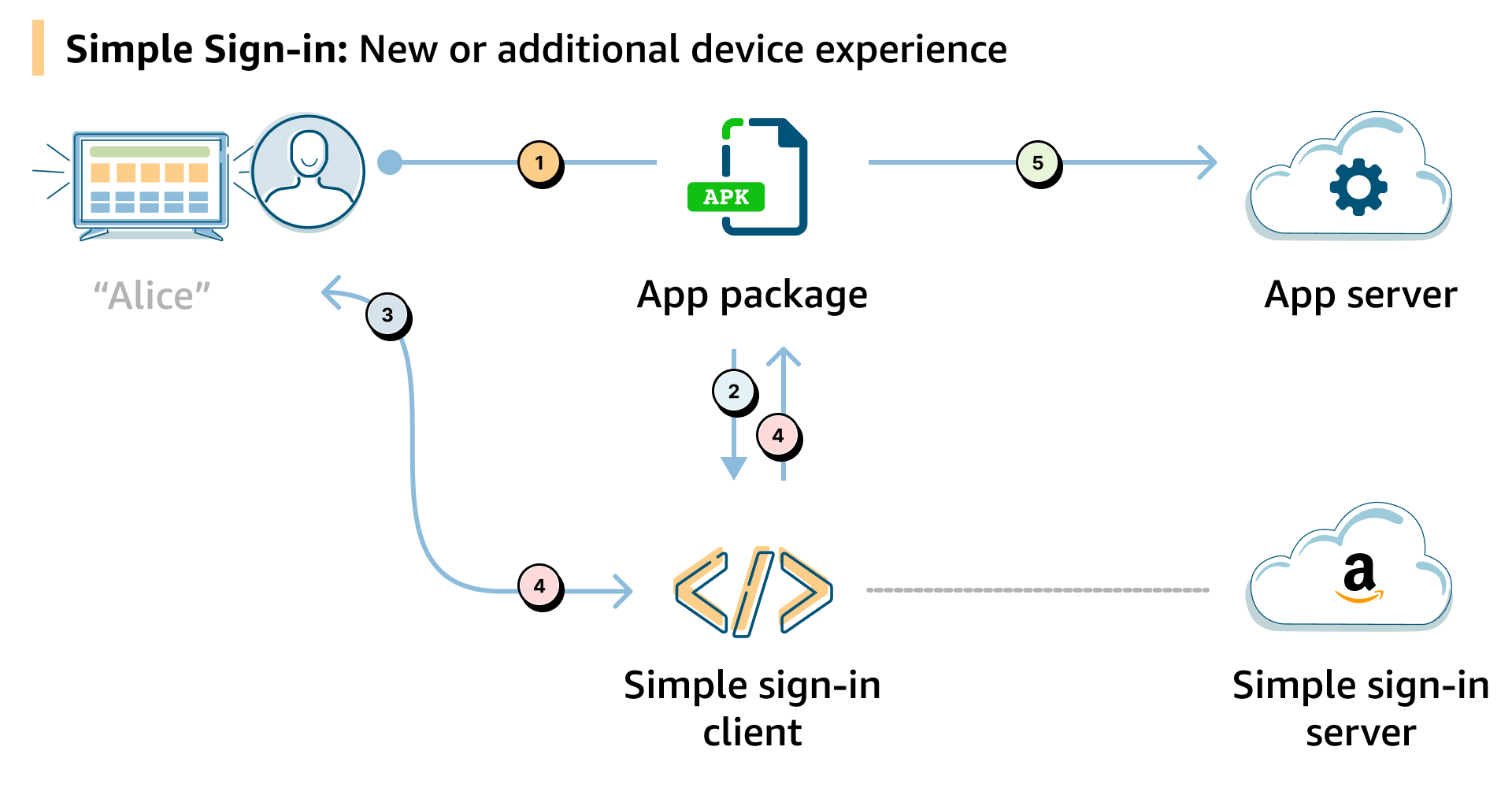
Subsequent device app sign-in high-level diagram
- Alice installs your app on another device, “Alice’s 2nd Fire TV”, which is also registered to her Amazon account. Alice launches the app and navigates to the sign-in flow.
- Before offering the standard login options, your app sends a message to the Simple Sign-in client to look for any linked accounts that can offer Simple Sign-in.
- Because Alice’s login identity for the app is already linked with her Amazon account, the Simple Sign-in client prompts her to confirm Simple Sign-in using a linked account.
- After Alice confirms Simple Sign-in, the Simple Sign-in client fetches the link token corresponding to the linked account from the Simple Sign-in server, and shares the token with your app.
- Your app makes a sign-in request to your server using the token. Your server processes and completes the sign-in request by authenticating Alice, using the token. In case of any failures, the Simple Sign-in flow ends and the app gracefully resorts to standard sign-in options.
Login selection dialog
On devices a user hasn’t previously signed in on, the app sign-in flow uses the login selection dialog. When a user has one or more accounts linked, the dialog recommends that the user picks a linked account to sign in to the app. The dialog shows a list of all active linked accounts. Each linked account on the dialog displays a user-recognizable identifier, such as a profile name, login name, or email address. The following images show the login selection dialog. On a Fire TV: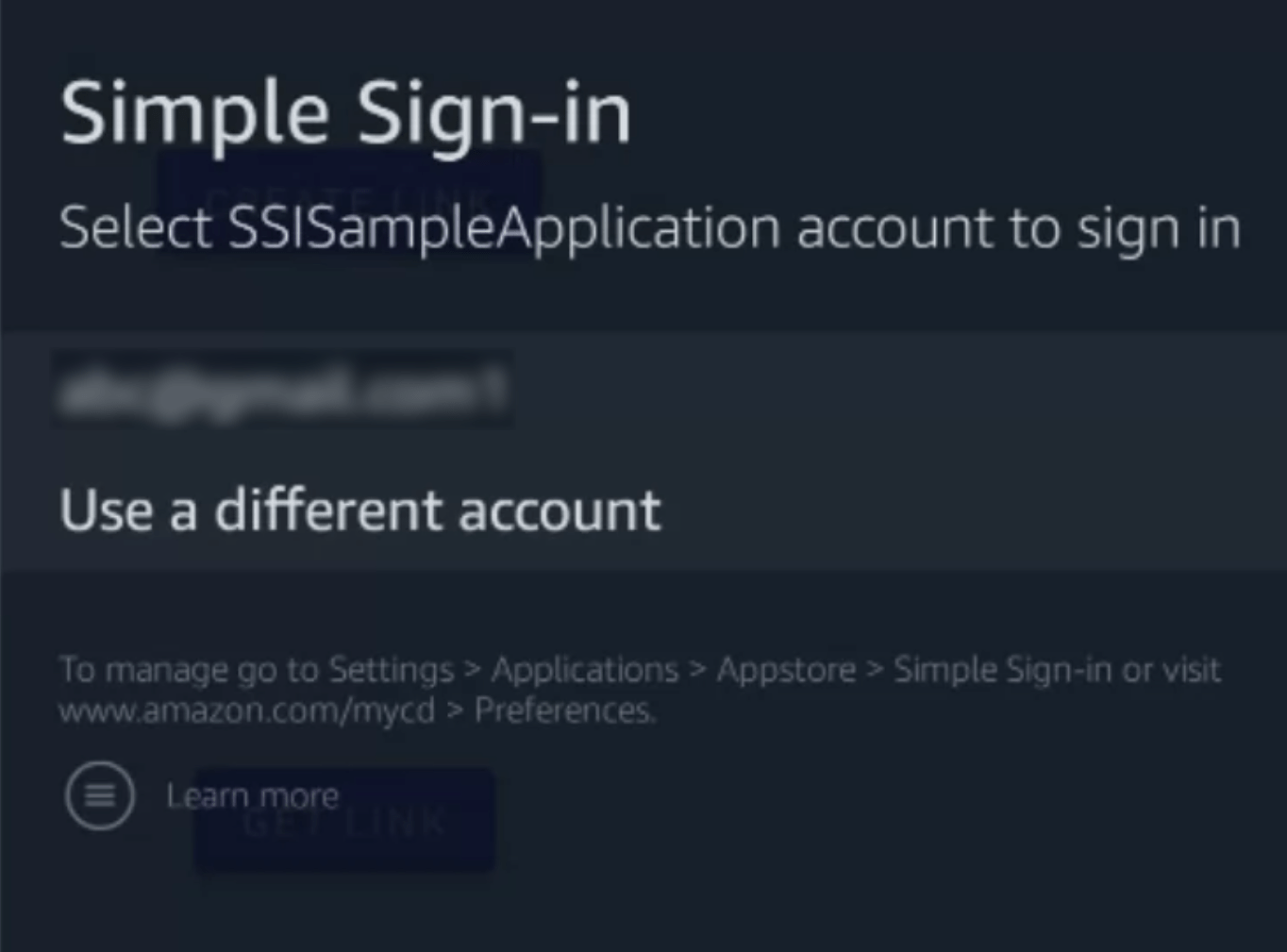
Fire TV dialog
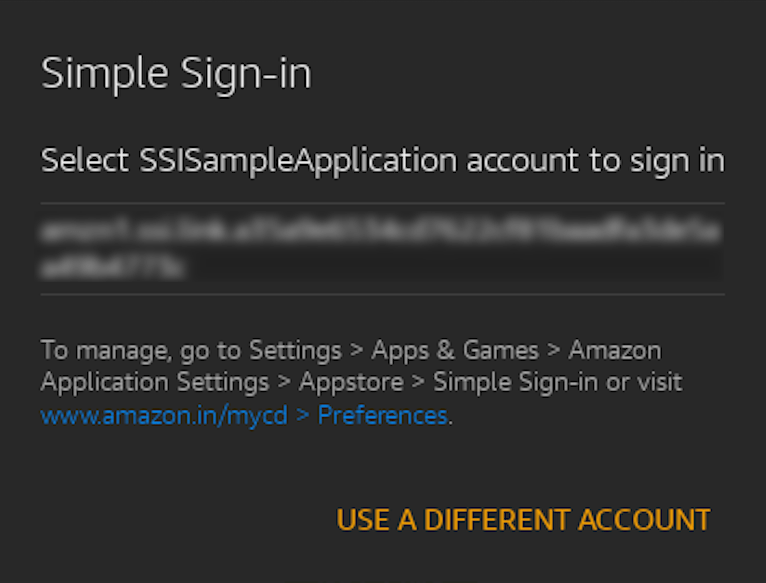
Fire tablet dialog
Detailed subsequent device sign-in with linked accounts
When a customer tries to sign in to an app on a subsequent device, they have the option to sign in using a previously linked app account. The following sequence diagram shows the flow when a user signs in with a subsequent device.
New device sign in with linked account sequence diagram
First launch after upgrade
The first time a user launches the app after it’s upgraded to a version that supports Simple Sign-in, the app initiates a user consent flow to set up account linking for that logged-in user. The following sequence diagram shows the upgrade flow.
First-time launch after upgrade sequence diagram