

Key definitions
| Key terms | Definition |
|---|---|
| In-App Purchasing (IAP) | An API you use to present, process, and fulfill purchases of digital content and subscriptions within your Appstore apps. |
| Base subscription | A primary in-app subscription that customers purchase directly from Appstore IAP. |
| Add-on subscription | A secondary in-app subscription that customers purchase in addition to a base subscription. |
- It’s always associated with at least one base subscription.
- It’s independently managed and the customer can cancel at any time.
- If the customer cancels the associated base subscription, the add-on subscription is automatically canceled.
- It has its own pricing.
- It can have its own introductory promotional price or free trial.
Example add-on subscription
The following diagram shows the base subscription structure of an app named “App A” on the Appstore. The app offers an in-app subscription named “Product A”.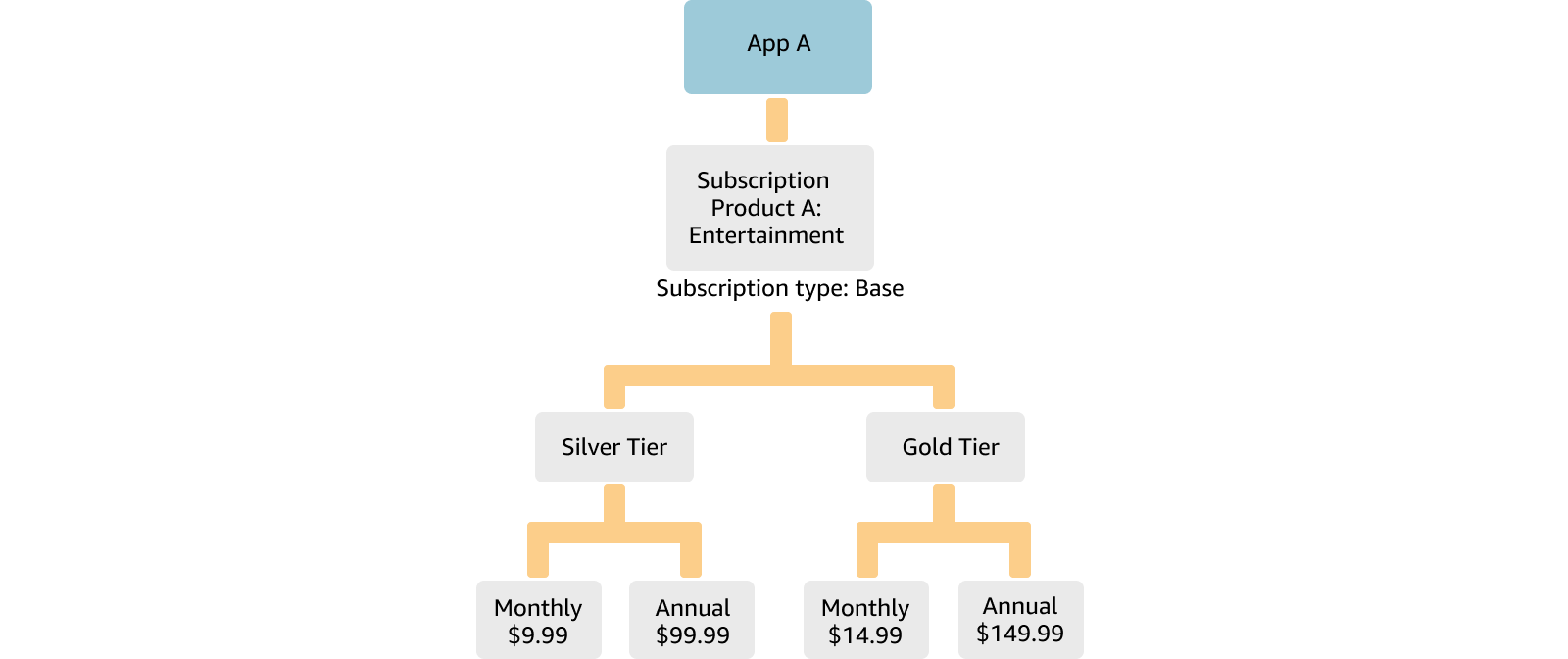 Text description for diagram
- “App A” offers “Product A”, which is a base subscription offering general entertainment.
-
Product A contains the following tiers and rates:
-
Silver tier
- Offers a monthly term at 9.99 USD.
- Offers an annual term at 99.99 USD.
-
Gold tier
- Offers a monthly term at 14.99 USD.
- Offers an annual term at 149.99 USD.
-
Silver tier
 Text description for diagram
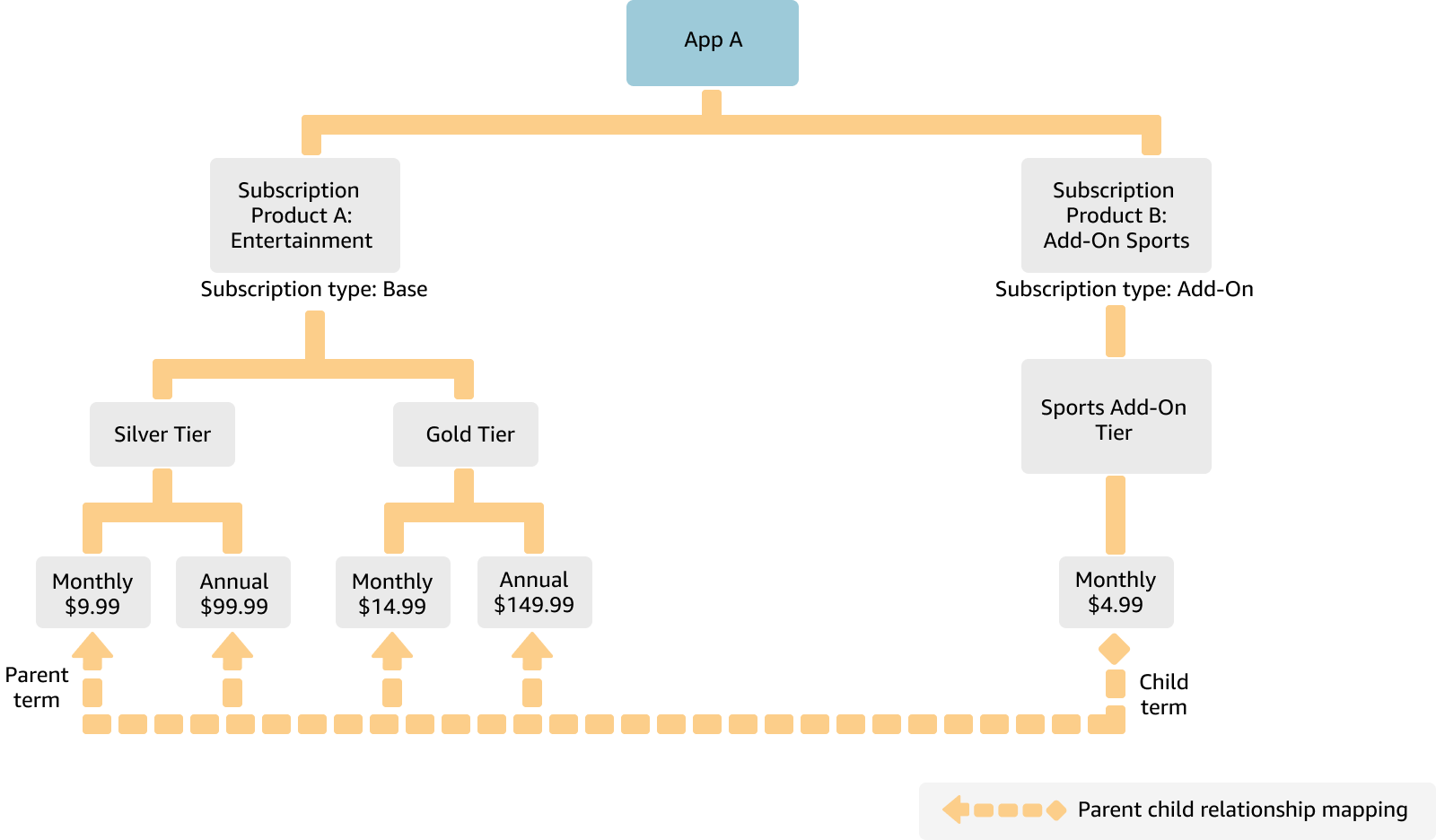
- “App A” offers “Product A”, which is a base subscription offering general entertainment, and “Product B”, which is an add-on subscription offering sports entertainment.
-
Product A contains the following tiers and rates:
-
Silver tier
- Offers a monthly term at 9.99 USD.
- Offers an annual term at 99.99 USD.
-
Gold tier
- Offers a monthly term at 14.99 USD.
- Offers an annual term at 149.99 USD.
-
Silver tier
-
Product B contains the following tiers and rates:
- Sports add-on tier
- Offers a monthly term at 4.99 USD.
- Sports add-on tier
Add-on subscription implementation responsibilities
The following table summarizes how Amazon divides responsibility between you (the developer) and Appstore when you implement In-App Purchasing (IAP) for an add-on subscription.| Action | Developer | Amazon Appstore | Notes |
|---|---|---|---|
| Set up the add-on subscription. | Yes |
| |
| Test the add-on subscription. | Yes | In the Developer Console, you can submit your add-on subscription to the test channel and test with the Live App Testing (LAT) app. | |
| Manage the new purchase flow within the app. | Yes | ||
| Perform payment processing for the base and add-on subscriptions. | Yes | ||
| Verify entitlements and validate the purchase receipts. | Yes | Use your existing Receipt Verification Service (RVS) setup. | |
| Manage billing for auto-renewing subscriptions for the add-on subscription. | Yes | A customer can cancel the add-on subscription from the subscription management page similar to a regular subscription. | |
| Manage billing for revoking of entitlements. | Yes | ||
| Manage the add-on subscription including tier and term changes. | Yes | All existing functionality for the base subscription applies to the add-on subscription. |
Appstore customer experience
The following sections show the customer experience for add-on subscriptions, including the purchase and subscription management experience.Purchase experience
You control add-on subscription discovery within your app. Appstore supports payment processing, validation, and error messages. However, you can customize the purchase flow experience with an icon and background image. When an existing subscriber begins an add-on subscription purchase, Appstore displays the customized add-on purchase verification screen, processes the purchase transaction, and shows the customized confirmation (Thank You) screen. Appstore then sends an email confirmation to the customer. The following images show the purchase experience of an add-on subscription on Fire TV. To build a unique experience, customize the subscription icon and background image in the Developer Console.
A customizable purchase verification screen

A customizable confirmation screen
Add-on subscription management experience
Customers can manage add-on subscriptions on the Amazon retail website.Your Memberships & Subscriptions screen
The following image shows an add-on subscription on the “Your Memberships & Subscriptions” screen. A customer can navigate to this page with these instructions:- From the right side of the top navigation bar, hover over Hello <Name> Accounts & Lists, then select Memberships & Subscriptions.

Your Subscriptions screen
The following image shows an add-on subscription on the “Your Subscriptions” screen from the Amazon Appstore section of the retail website. A customer can navigate to this page with these steps:- From the left side of the top navigation bar, select All.
- Under Digital Content & Devices, select Amazon Appstore, then select Manage Subscriptions.

Add-on subscription renewal and cancellation
The following business rules apply to renewals and cancellations:- A customer can have different renewal cycles for the base subscription and the add-on subscription.
- A customer can cancel an add-on subscription at any time from the Amazon retail website “Your Subscriptions” section without impacting the base subscription.
- If the customer cancels a base subscription, Appstore warns the customer about a potential add-on subscription cancellation. On the day of the base subscription expiration, Appstore automatically cancels the add-on subscription and immediately refunds any subscription balance back to the customer.
- If the base subscription for the customer is canceled immediately (due to a payment issue or Contact Center cancellation), the add-on subscription, if active, is automatically canceled with prorated refunds for the unused balance.
- If an existing customer changes the tier or term of the base subscription, the system either carries over the add-on subscription to the new tier or cancels the add-on subscription. The behavior is based on the mapping you defined in the Developer Console.
