What Are Notifications?
A notification is a message to your users that appears outside of your app’s user interface. Amazon Fire TV supports the Android Notification API, with some limitations. Typically you use notifications to let users know that you have an update available with your app. The update might be any of the following:- New content available
- New levels in a game
- New episodes available for an existing series
- Live TV channel lineup changed
- New game packs available in your app
- New functionality
- New badges or rewards earned
- New release
Types of Notifications Supported on Amazon Fire TV
There several types of notifications you can create on Amazon Fire TV:Heads-up Notifications
Amazon Fire TV supports Android’s heads-up notifications. Typically on Android devices, heads-up notifications are floating windows that appear at the top of the screen and allow users to interact with the window (such as receiving a call while you’re in another app). On Fire TV, heads-up notifications appear at the bottom of the screen and fade away after a few seconds. Some interaction is allowed while the notification appears. For example, users can click a button or dismiss the notification with the Back button. All undismissed heads-up notifications will be displayed in the Notification Center, where users can review the notifications at their leisure. This also ensures that users will actually see the notifications. (Previously, if users missed the heads-up notification, there wasn’t any way to return to it.) When you create heads-up notifications, you must set the notification as a high priority:Toasts
Though rarely used, Fire TV also supports toasts. Toasts are small pop-ups that appear within your app briefly and then disappear, with no ability for the user to interact with the message. Unlike heads-up notifications, toasts are not stored within the Notification Center.Standard Notifications
Standard notifications are informational in nature and do not interrupt the current foreground activity (unlike heads-up notifications, which pop-up in the bottom-right corner of the screen). Notifications from your app are added to the Notification Center as soon as they are raised. The Notification Center appears under the Settings menu. When users have unseen notifications, a little bell appears next to Settings.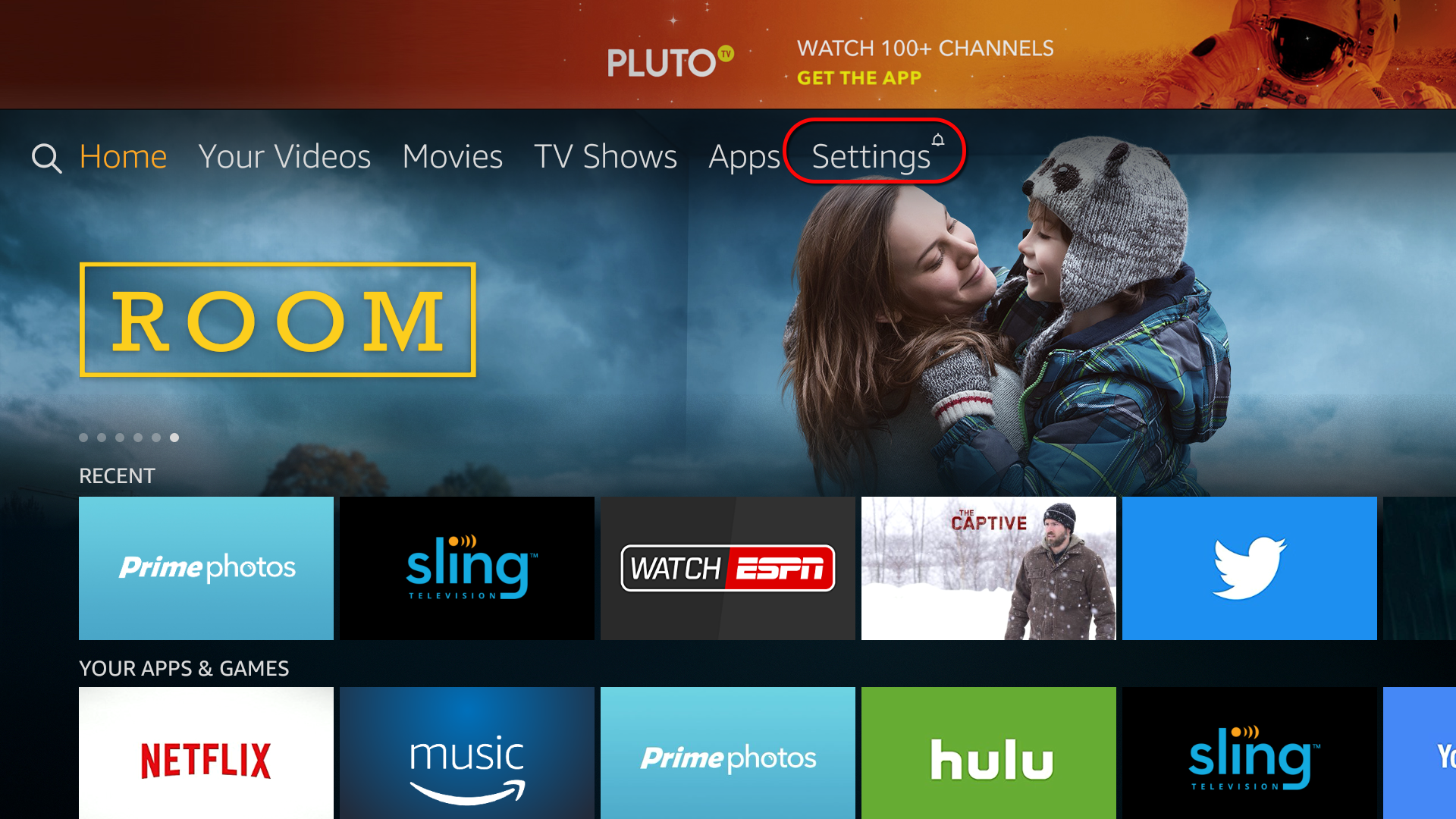 Within Settings, users select Notifications. This opens what is referred to in the documentation as the Notification Center.
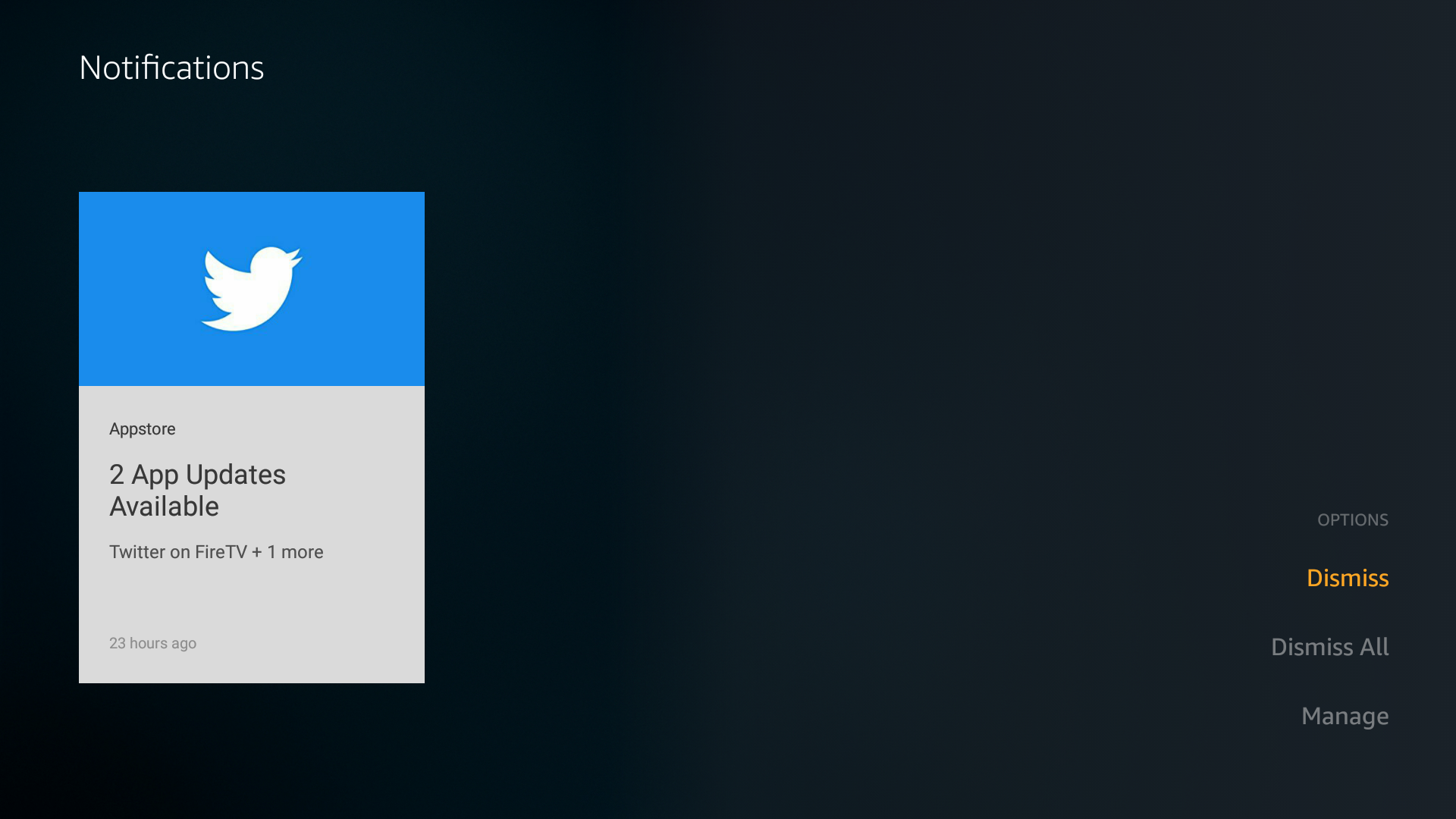
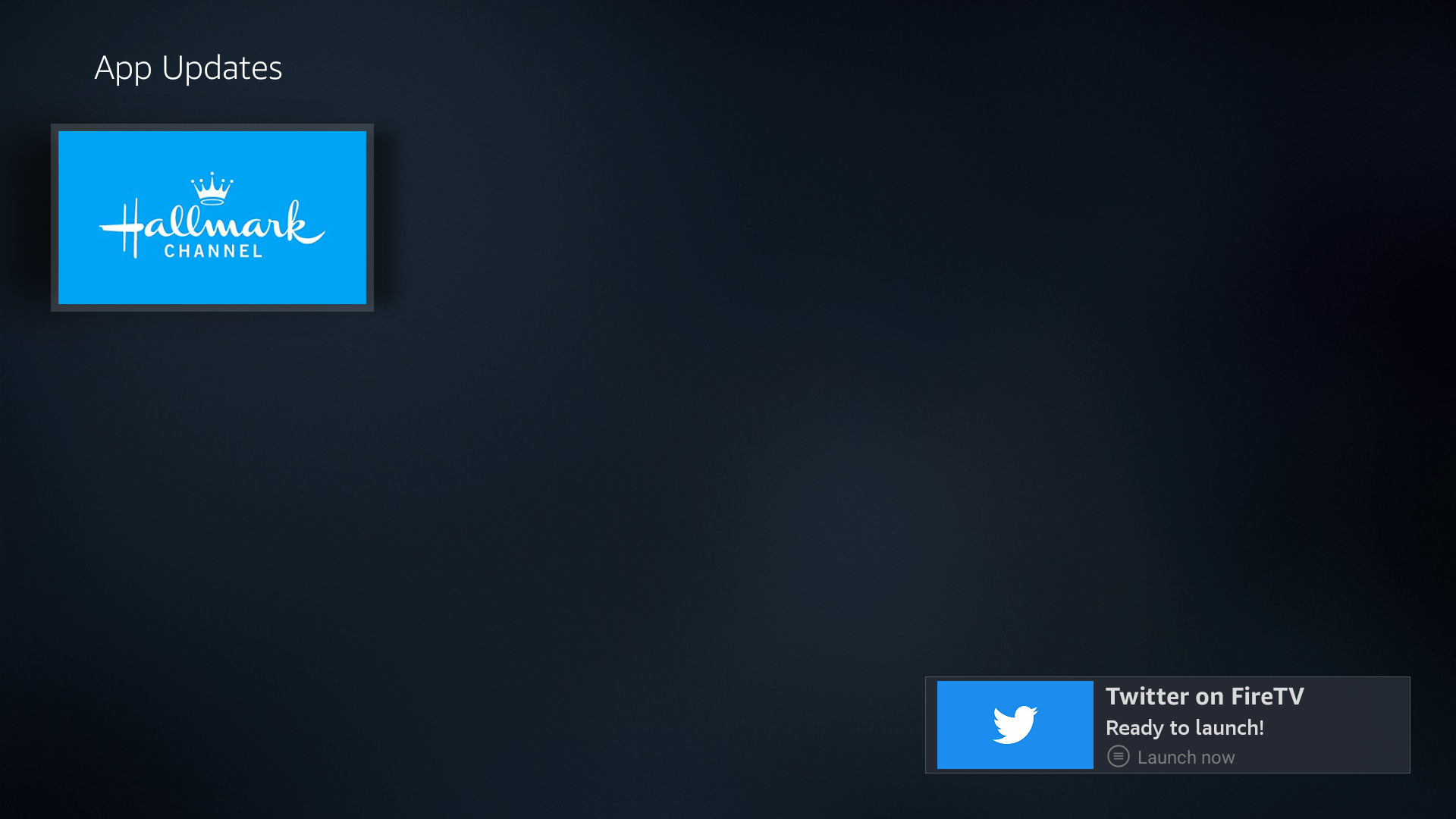
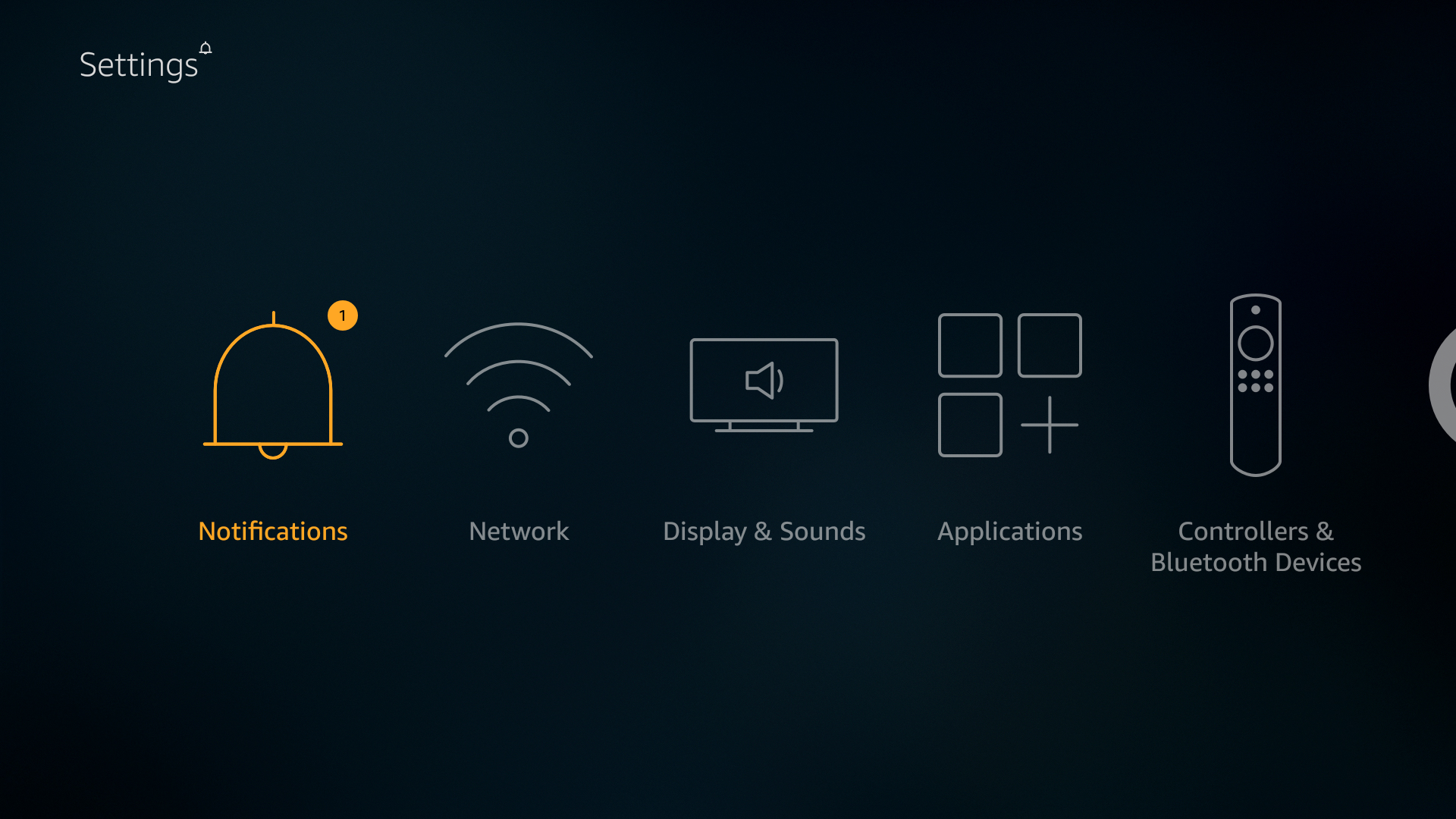 The Notifications Center arranges the notifications in a single list ordered by most recent first. The Amazon Fire TV Appstore client itself will send notifications when your app has an update (hence you don’t have to worry about pushing these kinds of notifications). In the following screenshot, there are two apps that have updates.
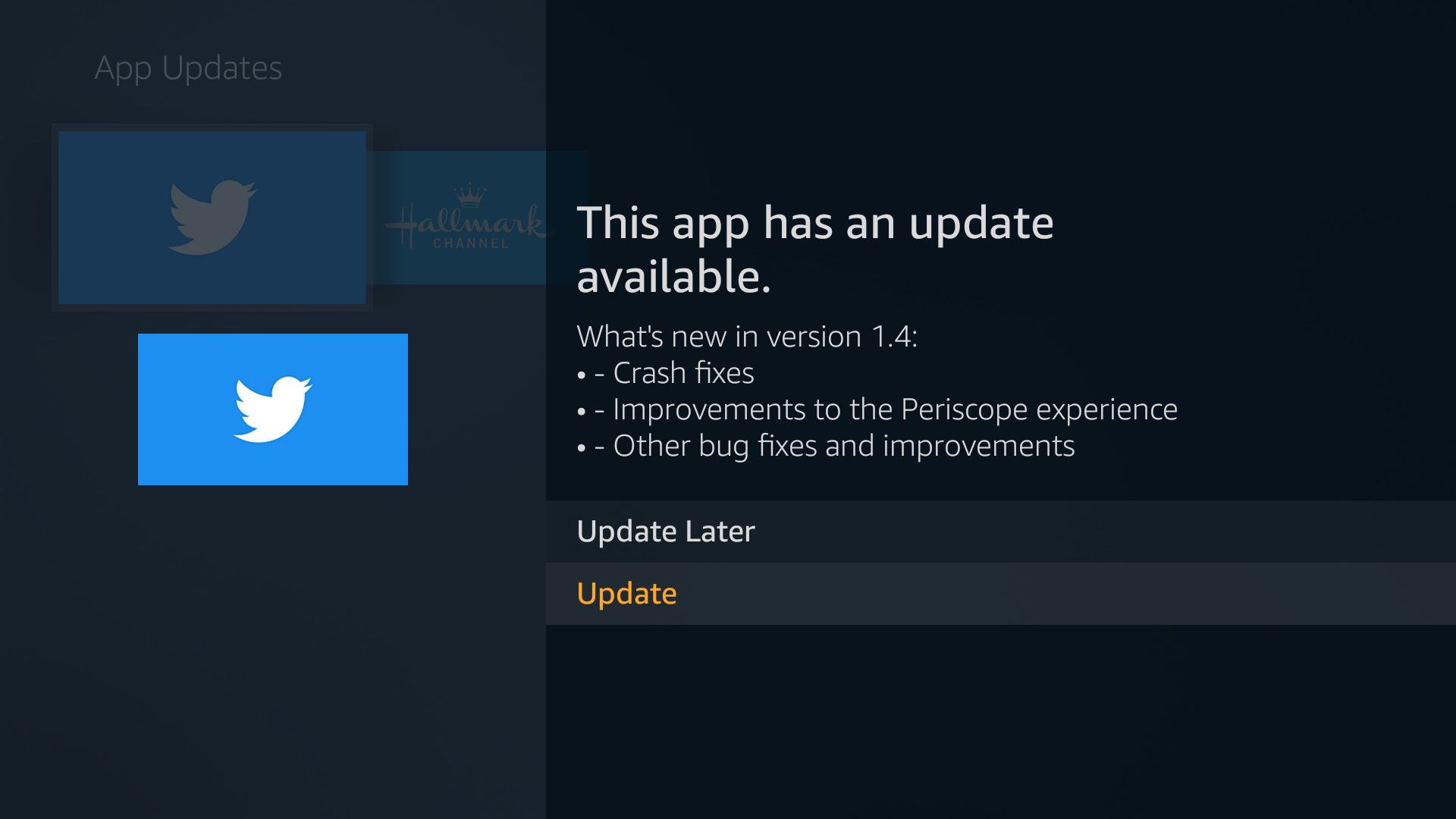
 When users click the icon, they see the updates available for the app. Users can choose to update the app or not.
 Notifications should contain enough information to convey the reason for the notification. They can also include an optional intent to launch when the notification is selected. For example, your notification can allow the user to launch your app with a deep link to the specific activity related to the intent.
When the update finishes, the user is prompted to launch the app.
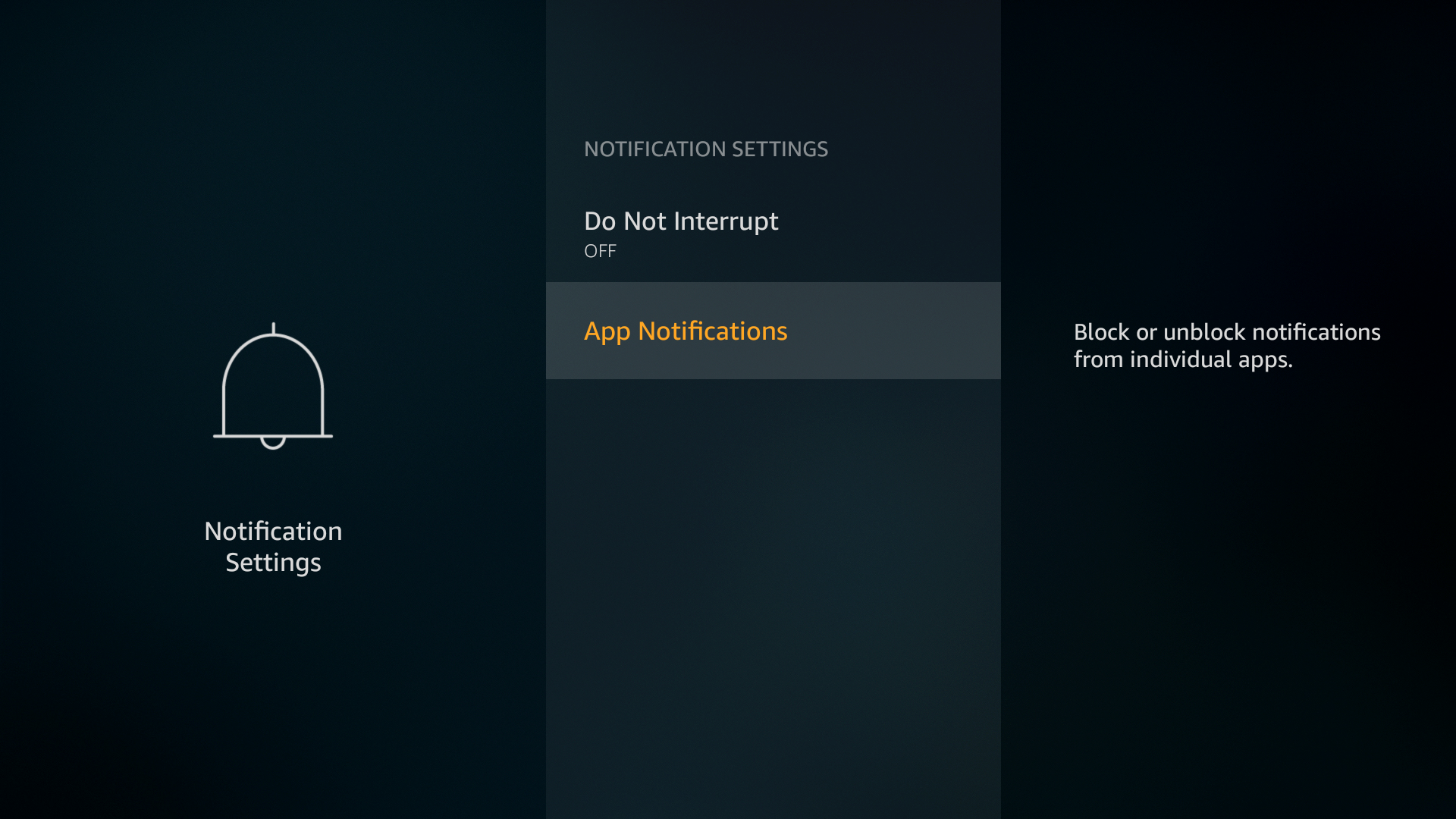
 Users can also turn app notifications on or off on a device-by-device basis. (More granular notification configurations are not possible.) Users can control app notifications by going to Preferences > Notification Settings > App Notifications.
 Users can also select Do Not Interrupt to suppress heads-up notifications from appearing on the screen. (You will still see standard notifications in the Notification Center and see the bell icon on Settings on the main navigation.)
All notifications appear in the Notification Center until the user engages with the notifications, dismisses them, disables notifications for the app, or until the app removes them.
A notification that was not dismissed after displayed as a heads-up notification will appear in the Notification Center.
Each notification indicates the time or date it was received.
As soon as a user visits the Notification Center, whether to click on a notification or not, the bell icon on “Settings” is removed.
Requirements for Notifications
The following table lists requirements for notifications.| Feature | Description | Required? |
|---|---|---|
| Large Image | A large image used as the tile image in the notification card. This image appears in the Notification Center. The image should be a 16:9 aspect ratio. The actual size of the image container is 228dp with x 128dp, so the image should be at least these dimensions (or larger). Larger images will be scaled down. See setLargeIcon for more details. If a large image isn’t provided, Fire TV will use the large app icon. | Optional |
| Action | Android intent to launch app or deep-link. | Optional |
| Title | Title of the notification. | Required |
| Description | Description of the notification. | Required |
| Action Text | Text for the Menu button (the default is “Launch now”); this is only included in notifications marked as Urgent. | Optional |
| Priority | Android priority for the notification (range is -2 to +2). If the priority is +1 or +2 (HIGH or MAX), the notification is considered an Urgent notification. If not included, the default priority is 0. | Optional |
Code Samples
For code samples and technical instruction on how to create notifications, see the Notifications in the Android documentation.System Notifications
Amazon Fire TV also sends system notifications to users. Although third-party apps can’t replicate or initiate system message notifications, it’s worth mentioning them here. Common Fire TV system notifications might include the following:- Low battery status
- Disconnected headphones
- Bluetooth pairing
- Application download/installation complete
- Other system updates
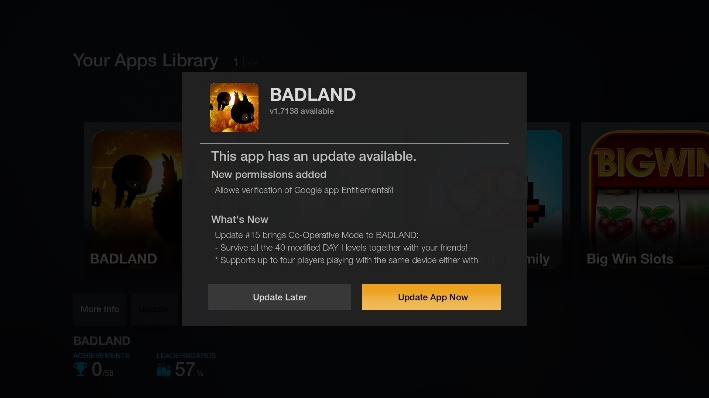
App Update Notification
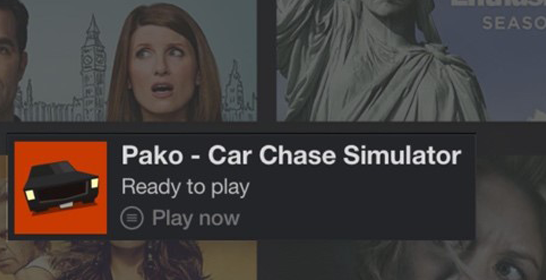
Post-Install Notification
Migrating from the Discontinued Amazon Fire TV Notifications API
In the past, Amazon Fire TV included a custom notifications API designed for TV use. As of Fire OS 5, the Amazon Notifications API is discontinued. If your app uses the Fire TV Notification API, those notifications will continue to work, but that API will be removed from the platform at a later date. If your app uses the Amazon Notifications API, we strongly suggest you move to using the standard Android (Lollipop) notification API instead. To migrate your app from the Amazon Notifications API:- Remove all references to
AmazonNotificationandAmazonNotificationManageras well as to the packagecom.amazon.device.notification. These can be replaced with the stockNotificationandNotificationManagerclasses in the Android notification API. - References to the
AmazonNotification.setType()method and theTYPE_INFOandTYPE_MEDIA_INFOconstants should be removed. Android notifications do not specify these types.