

How devices interface with ingested catalog metadata
Catalog ingestion is not tied to delivery on a specific device. In other words, Fire TV and Echo Show can interface with your ingested catalog’s content in different ways to play media. For example, Fire TV uniquely uses a Universal Search and Browse feature to enable content discovery that includes catalog-ingested TV shows and movies. The main advantage of Universal Search and Browse is to allow for content discovery, since the search is not app specific but rather “universal” across all apps that have ingested their catalogs into Amazon. On Fire TV, the Video Skills Kit (VSK) lets users interface with media that is immediately playable by apps that the user already has installed and authorized (e.g., signed in to). When users say an utterance such as “Play Interstellar,” Fire TV opens movie detail page with different options to play the media, or in some cases opens the requested media and immediately begins to play it. Echo Show allows for VSK integration too but doesn’t incorporate Universal Search and Browse functionality. The VSK on Echo Show lets users play video content from web apps invoked from a web browser. In both cases, the catalog content you ingest can be surfaced to the various devices. Overall, different devices can interact with your ingested catalog in different ways, but the process for catalog ingestion remains the same. Catalog ingestion is device agnostic.Requirements for catalog ingestion
Before starting the catalog ingestion process, make sure that you have or can easily obtain the following requirements:- Video-on-Demand Content: Catalog ingestion is restricted to apps that have video-on-demand movies, TV shows, and other media (for example, the kind of media you find on IMDb).
- Easy access to your media metadata: You’ll need to export your media’s metadata from a database; if you cannot export your metadata from a database, you will need to manually create your catalog file by hand. After exporting your metadata, you’ll need to create a catalog file that structures the information according to the Catalog Data Format schema.
- An Amazon Web Services (AWS) account: You or someone in your organization will need an AWS account and familiarity with the AWS S3 tools or a willingness to learn about the AWS S3 tools. (Details are explained in Set Up Your AWS Account.) You will need to run several AWS commands using the Command Line Interface (CLI) to upload your catalog file to AWS, so that Fire TV can obtain your catalog for integration. Amazon recommends using the AWS SDK to automate this process.
- Onboarding process and setup: It takes two weeks to set up our systems to provide you with an S3 bucket to test the catalog integration. Your Amazon business contact will also need to onboard you with the integration process. If you do not know who your Amazon business contact is, contact us.
- Minimal fields for matching: To provide metadata for matching, you must supply some required and additional fields. The Title field is required. Additional fields (a minimum of two but ideally three or more) are also required. The additional fields can include the following: ReleaseYear, Credits (Actor and Director), RuntimeMinutes, SeasonInShow or SeasonID (the SeasonID must reference a valid season), and ShowTitle or ShowID.
- Scripts to automate the process: The catalog creation and upload process requires multiple steps that can be simplified using automation. Consider allocating a developer resource to help script and set up a cron job to automate and simplify this process for your organization.
Catalog ingestion process overview
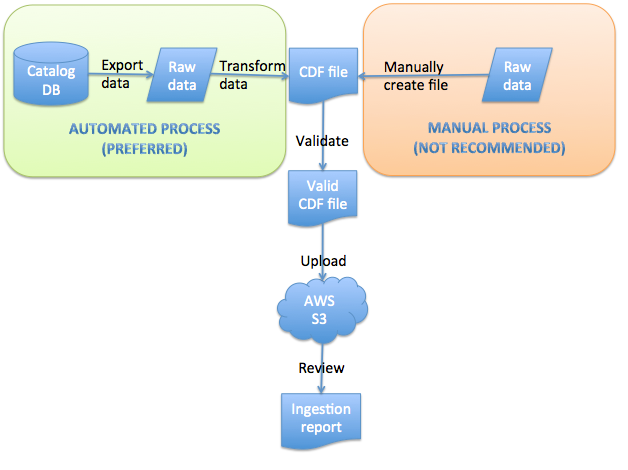
The catalog ingestion process involves the follow high-level steps: Here’s some more detail about each of these steps:- Step 1: Create Your Catalog File: Create an XML file in our Catalog Data Format (CDF) for your media metadata.
- Step 2: Validate Your Catalog File: Validate your catalog file against the CDF schema (XSD) file.
- Step 3: Set Up Your AWS Account: Set up an AWS account with appropriate permissions to enable you to upload to a specific S3 bucket using the command line.
- Step 4: Upload Your Catalog File: Upload your catalog file to the S3 catalog bucket that Amazon creates for you.
- Step 5: Verify Your Uploaded Catalog File: Review the Amazon-generated ingestion report to confirm that your catalog file was successfully ingested.
- Step 6 - Optional: Integrate Linear TV Data: Upload linear TV catalog data and connect with your app.
- Step 7: Update your Catalog at Regular Intervals: Submit catalog data on a weekly basis.
- Optional: Use Page Collation: Submit your catalog in smaller parts rather than submitting one large catalog.
Latency time before content is live
Catalog ingestion is not real time — data takes up to 24 hours to appear on devices and in search results. For best results, submit your catalog content 72 hours before broadcast (such as for high profile launches). If you want to avoid spoilers, you can use theMetadataAvailabilityDate tag in your catalog file. This way your catalog items will not show up until the time declared for that content.
