CDF schema
The Catalog Data Format (CDF) schema defines the required elements to describe your media so that Amazon can integrate your catalog. The schema is defined in the catalog.xsd file. The schema contains more than 150 elements used for different types of media, such as movies, TV shows, broadcasts, and more. You can download the catalog.xsd file below: You can view the Catalog schema documentation in two ways:- Element-filtered Web Pages. The web pages show diagrams and code samples that reflect the element hierarchy, parent-children requirements, and other content model details.
- View the XSD file directly. This XSD file provides a technical representation of the content.
Element-filtered web pages
You can view the schema elements in the CDF documentation. Although you can view all elements in a flat list, it might be more helpful to select a common parent element (such asMovie) and look at the diagram for that element.
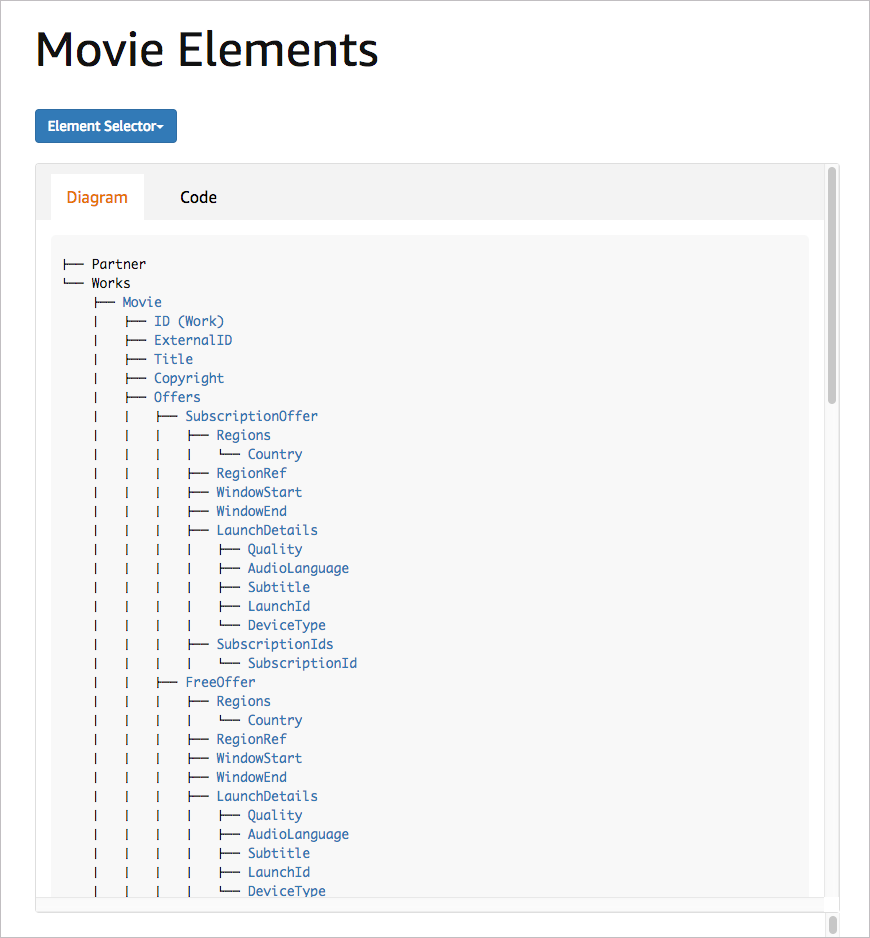
Web page with filtered elements
- Works
- Movie
- TvEpisode
- TvSeason
- TvShow
- Extra
- LinearData
- Station
- Lineup
- ScheduleDay
- StationMappingData
View the XSD file directly
You can also view thecatalog.xsd file directly in an XML editor for more enhanced navigation controls.
You can also read the XSD file directly to learn the schema logic. If you’re new to XSD files, see XML Schema Part 0: Primer Second Edition for an introduction. More formal reference documentation for the XSD schema is available at XML Schema Part 1: Structures Second Edition and XML Schema Part 2: Datatypes Second Edition.
Here are a few tips on reading XSD files:
| XSD property | What it means |
|---|---|
xsd:element | Identifies an element |
minOccurs="0" | The element is optional |
maxOccurs="unbounded" | The element can be repeated an unlimited number of times. |
xsd:simpleType | The element does not have any children or attributes. See simpleType for more details. |
xsd:complexType | The element either has children or attributes. Complex Types have a content model description that specifies whether the child elements must be sequential, whether the children have either/or requirements, or other logic. See complexType for more details. |
xsd:choice | Indicates that you must choose, among the child elements, which one you want to include. The logic is either one element or the other, not all. For example, Credits allows either a CastMember or CrewMember child item, but not both. |
xsd:sequence | Indicates that the child elements must follow the specified sequence. For example, CustomerRating requires that the child elements Score, MaxValue, and Count appear in sequential order, with the Count as optional. |
xsd:sequence and xsd:choice together | Some elements use a combination of both sequence and choice together. When this happens, the description for the content model clarifies the usage. |
xsd:annotation | Indicates documentation for the element. Note that although the catalog XSD file has some annotation elements with each element, the descriptions are brief and not intended as the official documentation. The documentation on the web pages provides the official documentation for the elements. The value of the XSD file is in identifying the content model logic and required usage more than understanding the meaning of each of the elements. |
xsd:enumeration | An enum value is allowed for the simpleType’s value. Enums limit the options to a predefined list of strings. |
xsd:extension base= | The logic for the element builds on another element. This element extends on another element as its base. |
xsd:attribute | The element allows attributes. See 2.2 Complex Type Definitions, Element & Attribute Declarations for a description of attributes in XML. |
XML data types
Certain data types, such as Strings, Booleans, and Integers, are built directly into the XML schema. Common data types you’ll see in the catalog file are defined in the following table. You can read more details either at the tutorial link or the official w3.org site. (The tutorial link provides a more friendly, readable description of the data type, while the w3.org link provides the official schema reference.)| XML Data Type | Description | Tutorial Link | W3C Link |
|---|---|---|---|
boolean | A true or false value | xsd:boolean | w3.org |
decimal | A number with a decimal such as 5.2 | xsd:decimal | w3.org |
date | A date value in the form of 2019-02-19 | xsd:boolean | w3.org |
dateTime | This value takes the form YYYY-MM-DDThh:mm:ss where YYYY-MM-DD is the year, month, and date and hh:mm:ss is the hour, minute, and second. Example: 2003-08-08T17:18:37. The T separates the two portions. The entire value is required, from the year down to the second. If the time value is unknown to you, simply use 00:00:00. You can also add an offset from UTC to the end of the value to account for a particular time zone. | xsd:dateTime | w3.org |
duration | A duration of time written as an expression starting with P and then years, months, days, hours, minutes, seconds. For example, P2Y6M5DT12H35M30S. | xsd:duration | w3.org |
int | Integer (a whole number) such as 5 | xsd:int | w3.org |
language | A language identifier such as en | xsd:language | w3.org |
NonEmptyToken | Same as xsd:token but not allowed to be empty. | xsd:token | w3.org |
string | Alphanumeric letters and numbers | xsd:string | w3.org |
string (localized) | Same as string but with attributes such as locale and pronunciation that allow for localization. | xsd:string | w3.org |
token | Similar to string but ampersands and angle brackets must be escaped. Any white space is collapsed onto the same line. | xsd:token | w3.org |
anyURI | A URL such as https://amazon.com | xsd:anyURI | w3.org |